S3 Lifecycle Rules - Hands On
This hands-on lab demonstrates how to architect a complete data lifecycle management matrix inside the S3 console.
Hands On
Phase 1: Initialize the Automated Rule Scope
- Open your AWS Management Console, navigate to Amazon S3, and click into your target deployment bucket.
- Switch over to the top-level Management tab.
- Locate the Lifecycle rules dashboard section container and click Create lifecycle rule.
- Lifecycle rule name: Type
DemoRule. - Choose a rule scope: Select Apply to all objects in the bucket.
- Check the explicit confirmation box acknowledging that this rule will apply globally across every single file asset nested inside this bucket container.
Phase 2: Select Your Targeted Data Tracks
Scroll down to the Lifecycle rule actions section. Notice that AWS exposes five distinct operational workflows. Check the boxes for the specific behaviors you want to activate for your infrastructure:
- Transition current versions of objects between storage classes: Targets the live, active files currently served to users during standard path queries.
- Transition noncurrent versions of objects between storage classes: Targets the historical file layers buried beneath a newer upload or an active Delete Marker.
- Expire current versions of objects: Triggers a time-based soft-deletion workflow for active assets.
- Permanently delete noncurrent versions of objects: Permanently vaporizes back-end file versions to clean out digital clutter.
- Delete expired object delete markers or incomplete multipart uploads: (Leave unchecked for this lab, but used in production to stop partial chunk upload billing loops).
- Check the mandatory acknowledgment box confirming you understand that tier transitions incur micro-billing cost shifts.
Phase 3: Build the Current Version Cascade
Under the newly expanded Transition current versions of objects workspace layout panel, configure a chronological step-down sequence by choosing your tier targets and day offsets:
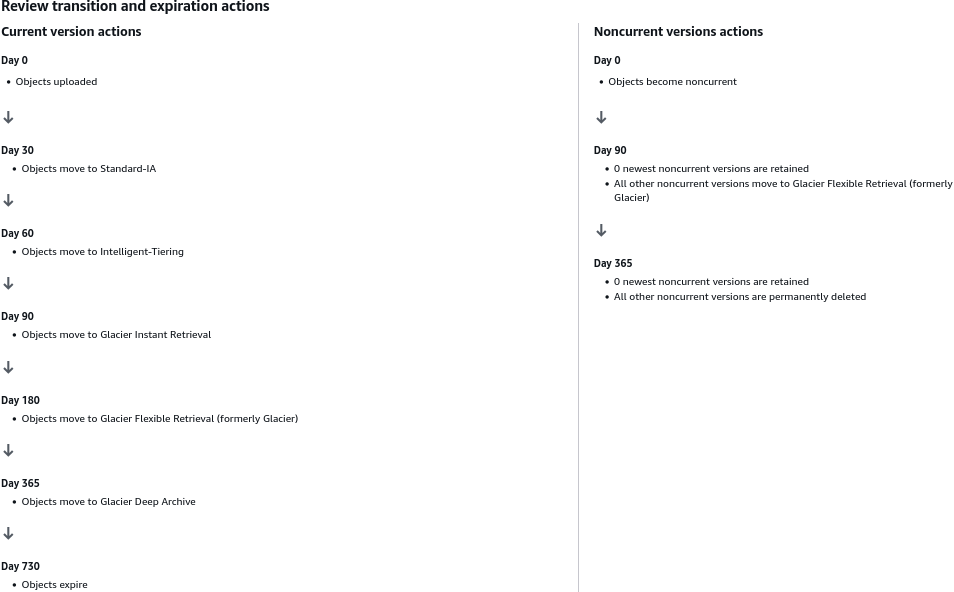
- Transition 1: Choose Standard-IA from the storage class dropdown → Set Days after object creation to 30.
- Click Add transition.
- Transition 2: Choose Intelligent-Tiering from the dropdown Set Days after object creation to 60
- Click Add transition.
- Transition 3: Choose Glacier Instant Retrieval from the dropdown → Set Days after object creation to 90.
- Click Add transition.
- Transition 4: Choose Glacier Flexible Retrieval from the dropdown → Set Days after object creation to 180.
- Click Add transition.
- Transition 5: Choose Glacier Deep Archive from the dropdown → Set Days after object creation to 365.
Phase 4: Configure the Archival Non-Current and Expiration Boundaries
Scroll to the respective sub-panels to define your compliance retention rules and absolute deletion barriers:
- Transition Non-Current Layers: Under the Transition non-current versions workspace layout block:
- Choose Glacier Flexible Retrieval from the dropdown → Set Days after objects become non-current to 90.
- Expire current versions of objects: Under the Expire current versions of objects field container:
- Set Days after object creation to 730 (2 years).
- Note: Once an active file hits day 700, S3 automatically places a Delete Marker on top of it, soft-deleting it from public view.
- Permanently delete noncurrent versions of objects: Under the Permanently delete non-current versions of objects panel:
- Set Days after objects become non-current to 365 (1 year).
- Note: This ensures that exactly 365 days after a historical version is replaced, its bits are permanently wiped off the drive array to freeze your storage costs.
Phase 5: Audit and Deploy the Timeline Grid
- Scroll to the absolute bottom of the creation dashboard page.
- Review the unified Lifecycle Timeline Summary Roadmap Table generated by the console UI. Verify that your operational tracks are cleanly mapped without conflicting logic errors
Exam Tips
| Specific Console Rule Action Option | Primary Architectural Target | Ultimate Data Outcome | Gold-Standard Production Use Case |
|---|---|---|---|
| Move current versions between classes | Active production file assets | Shifted to colder, cheaper hardware tiers | Optimizing predictable app data over a 365-day cycle. |
| Move non-current versions between classes | Staged history layers beneath active files | Shifted straight to cold archive tiers | Compliance storage for overwritten system ledgers. |
| Expire current versions | Active production file assets | Hides object by dropping a Delete Marker on top | Automatically soft-deleting transient session media. |
| Permanently delete non-current versions | Sub-surface historical version layers | Permanently and destructively purged | Hard-purging legacy code bundles to save money. |
| Delete expired object delete markers | Floating standalone markers / Stalled multi-part chunks | Cleans up marker rows and sweeps out partial files | Wiping hidden multi-part upload chunks over 14 days old. |