S3 MFA Delete Hands On
This hands-on lab walks through the lifecycle of enabling, testing, and disabling S3 MFA Delete protection via the AWS CLI using the Account Root User. You will configure an isolated root-level profile context, authorize an s3api structural bucket state change using live MFA timed codes, verify that the active security gate successfully drops unauthenticated version purges, and safely roll back the layout before hard-deactivating your root security tokens.
Hands On
Phase 1: Establish the Identity Prerequisites
- Create the Target Bucket:
- Open the Amazon S3 Console and click Create bucket.
- Bucket name:
demo-rendy-mfa-delete(or append a unique numeric identifier string). - Region: Select Sydney (
ap-southeast-2) or any regional coordinate close to your location. - Scroll to the Bucket Versioning container block and explicitly select Enable. Click Create bucket.
- Locate the Root MFA ARN
- Log into your console explicitly as the AWS Account Root User.
- Click your profile name dropdown in the top right and select Security Credentials.
- Under the Multi-factor authentication (MFA) block, locate your active device and copy its unique structural identifier string (the MFA Serial ARN):
- Provision the Dangerous Root Access Token Keys
- Scroll down to the Access keys section panel and click Create access key.
- Immediately download the key file (
.csv) or copy the uniqueAccess Key IDandSecret Access Keystrings to a temporary secure workspace. - ⚠️ Security Warning: Never share or upload these root credentials anywhere!
Phase 2: Build The Local Root Profile Environment
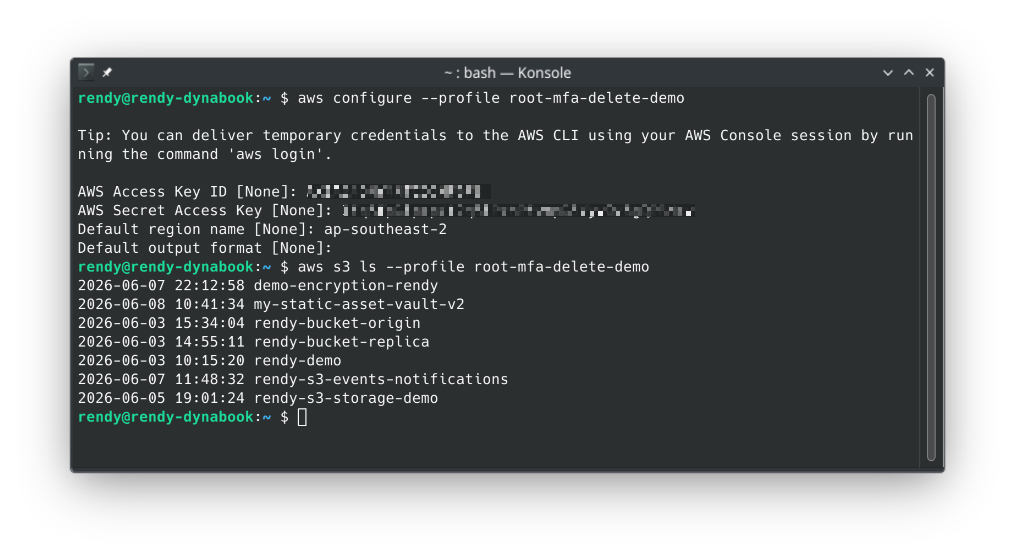
- Open your local machine terminal window and configure an isolated, named profile blueprint to handle the root credentials without breaking your standard daily developer setups:
aws configure --profile root-mfa-delete-demo
- Map the Local Input Prompt Array
- AWS Access Key ID: Paste your raw temporary Root Access Key.
- AWS Secret Access Key: Paste your raw temporary Root Secret Key.
- Default region name: Type
ap-southeast-2(or your chosen bucket region). - Default output format: Hit Enter to accept the standard default (json).
- Execute a Baseline Security Validation Check: Verify your local profile is successfully talking to the AWS cloud control plane by listing your account inventory:
aws s3 ls --profile root-mfa-delete-demo
Phase 3: Programmatically Enable S3 MFA Delete
- To flip the bucket security property wrapper, invoke the low-level
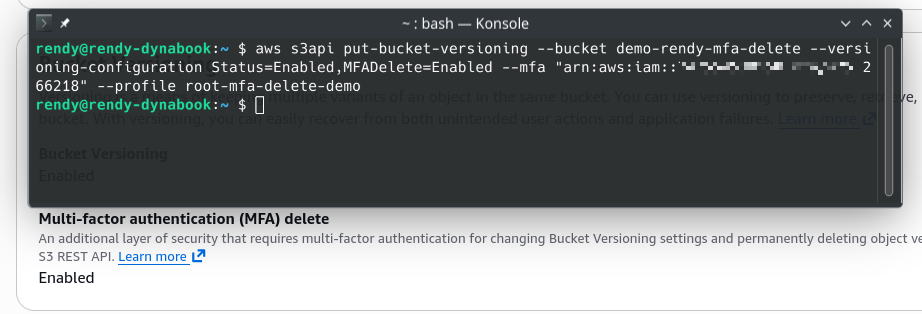
s3apiconfiguration utility script tool. - Paste the following command payload structure, replacing the placeholder arguments with your exact bucket name, your copied Root MFA ARN, and a live 6-digit passcode directly pulsing from your authenticator app (e.g., Authy/Google Authenticator):
aws s3api put-bucket-versioning --bucket demo-rendy-mfa-delete --versioning-configuration Status=Enabled,MFADelete=Enabled --mfa "arn-of-mfa-device mfa-code" --profile root-mfa-delete-demo
- Syntax Note: Ensure your
--mfaparameter is wrapped in clean quotation marks, structured strictly as:"<MFA_ARN>[Space]<6_DIGIT_CODE>". - Verify the State Change: Jump back to your S3 Console tab, hard-refresh the page, and open your bucket's Properties tab. Under the Bucket Versioning card, verify it now proudly reads:
Multi-factor authentication (MFA) delete: Enabled.
Phase 4: Put the Security Gate to the Test
- Go to the Objects tab panel inside your bucket and upload a sample file named
coffee.jpg. - Test Case A (The Standard Soft Delete): Select
coffee.jpgand click Delete. Typedeleteto confirm. S3 will process the request cleanly!- Why did this work? Because a regular delete operation on a versioned bucket does not destroy data—it simply rolls a zero-byte Delete Marker onto the top of the stack. This is non-destructive, so MFA is not invoked.
- Test Case B (The Destructive Permanent Purge): Click the Show versions toggle switch to reveal the background historical data layers. Select your original
coffee.jpgfile row (the one displaying a physical file size version ID, not the Delete Marker row) and click Delete. - The Interception Result: S3 intercepts the deletion protocol and throws an explicit permission roadblock directly onto your screen:
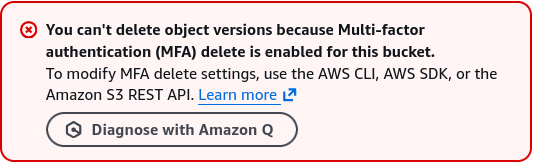 .
.
Phase 5: Execute the Teardown Rollback & Key Destruction
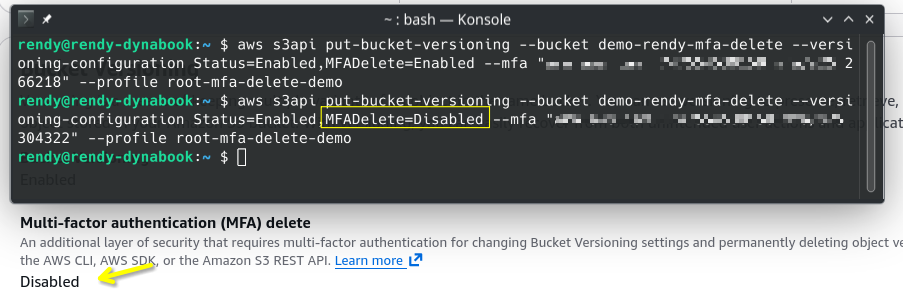
- To clear out the file or reset the architecture, you must issue an updated
s3apiscript call to programmatically return the bucket property to aDisabledconfiguration state:
aws s3api put-bucket-versioning --bucket demo-rendy-mfa-delete --versioning-configuration Status=Enabled,MFADelete=Disabled --mfa "arn-of-mfa-device mfa-code" --profile root-mfa-delete-demo
- Verify the Rollback: Refresh your S3 Console Properties pane to ensure the attribute has flipped back to
Disabled. You can now cleanly click and delete any historical file version or delete marker rows straight inside the UI table layout grid.
Exam Tips
The Status Argument Pitfall: Imagine a test scenario states, "You are attempting to disable MFA Delete on a secure asset bucket via the AWS CLI using your Root Account tokens. You fire the aws s3api put-bucket-versioning command passing MFADelete=Disabled,Status=Disabled. The CLI outputs a validation structural error and fails to execute. How do you resolve this?"
The definitive diagnostic answer is that Status=Disabled is an invalid structural parameter. > S3 Versioning has a strict one-way state machine progression law. Once versioning is switched on, it can never be disabled; it can only be suspended. >
Therefore, when rolling back or adjusting your security configurations, you must pass Status=Enabled (to keep versioning tracking active while turning off the MFA fence) or Status=Suspended (to pause version tracking entirely). Passing Status=Disabled will cause the API compiler to drop the network thread immediately!