Create Stack Hands-On
We are logging into the AWS Console and anchoring ourselves specifically in the Sydney (ap-southeast-2) region because Amazon Machine Image (AMI) IDs are strictly region-locked. We review how complex templates translate into drag-and-drop structural diagrams inside Infrastructure Composer (formerly Application Composer). Then, we upload a minimal YAML template named 0-just-ec2.yaml. AWS stages this file in Amazon S3, parses the declarative block, and provisions an isolated t3.micro EC2 instance in Availability Zone ap-southeast-2 without us clicking a single button inside the EC2 wizard.
Hands On
Infrastructure Blueprint: Phase-by-Phase Setup
Phase 1: Regional Alignment & Visualization Review
- The Regional Boundary Guard: Switch your console destination directly to
ap-southeast-2. Running a CloudFormation template with a hardcoded ImageId in the wrong region causes the stack engine to crash immediately with an invalid AMI identifier error. - Canvas Examination: Explore a sample WordPress block template inside Infrastructure Composer. Note how complex, multi-tier YAML configurations parse into clean interactive nodes (like
WebServerSecurityGrouporLaunchConfig) on a visual canvas, showing how infrastructure blocks map to each other.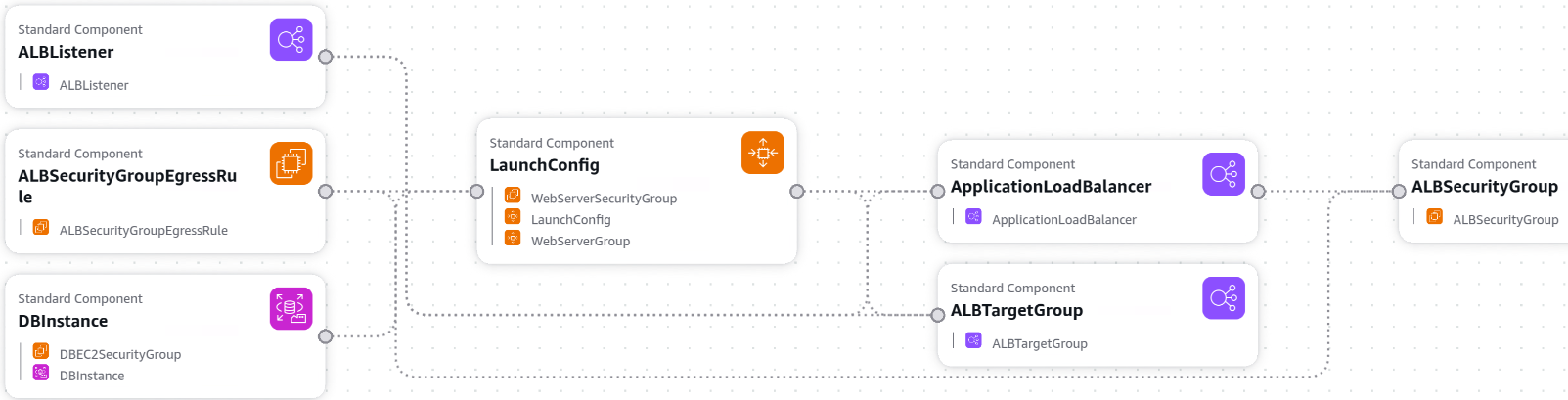
Phase 2: Minimal EC2 Template Deployment
Code Structural Inventory: Open up the basic target file0-just-ec2.yamlin your workspace. The blueprint contains the exact bare minimum structural parameters required to instantiate an AWS compute node:
---
Resources:
  MyInstance: # The Logical ID of the resource
    Type: AWS::EC2::Instance # The resource type
    Properties:
      AvailabilityZone: ap-southeast-2a
      ImageId: ami-0c78ef10ebf8c08db # Amazon Linux 2023 AMI 2023.12.20260611.0 x86_64 HVM kernel-6.1 ap-southeast-2
      InstanceType: t3.micro
Phase 3: Launching the Stack Pipeline
- Wizard Execution: Inside the CloudFormation dashboard, click Create Stack (with new resources).
- The S3 Staging Event: Choose Upload a template file and point it to your local
0-just-ec2.yaml. The moment you select it, the AWS Console quietly uploads that raw text file into an automated tracking bucket inside Amazon S3. - Naming and Submission: Title your stack
EC2InstanceDemo, click through the default permission screens, and hit Submit.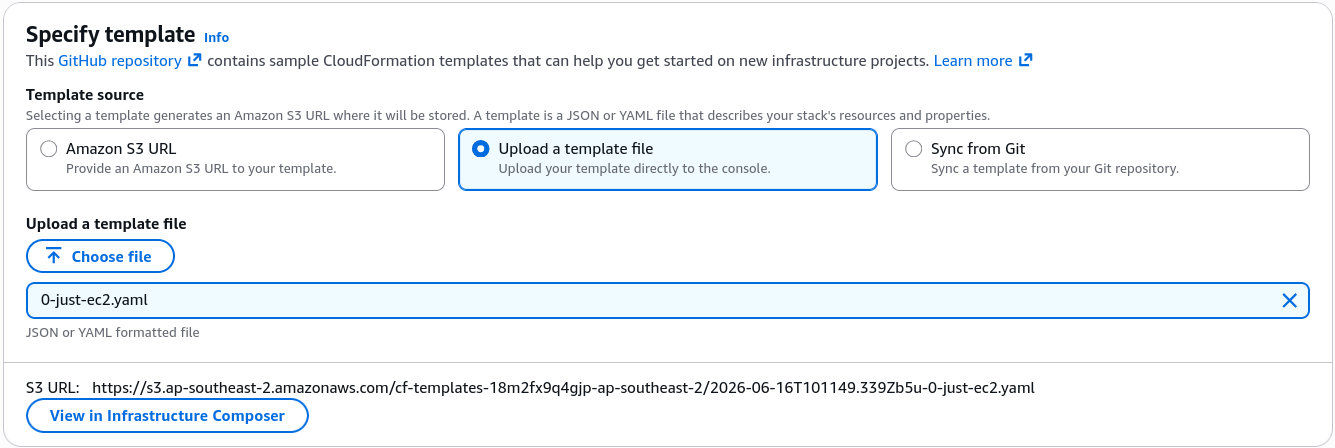
Phase 4: Lifecycle Monitoring & Tag Verification
- Tracking State Transitions: Refresh the Events tab immediately. You will watch the deployment machine execute the provisioning pipeline:
EC2InstanceDemo - CREATE_IN_PROGRESSMyInstance - CREATE_IN_PROGRESSMyInstance - CREATE_COMPLETEEC2InstanceDemo - CREATE_COMPLETE
- Resource Introspection: Head over to the Resources tab, find the generated Physical ID (the instance ID string like
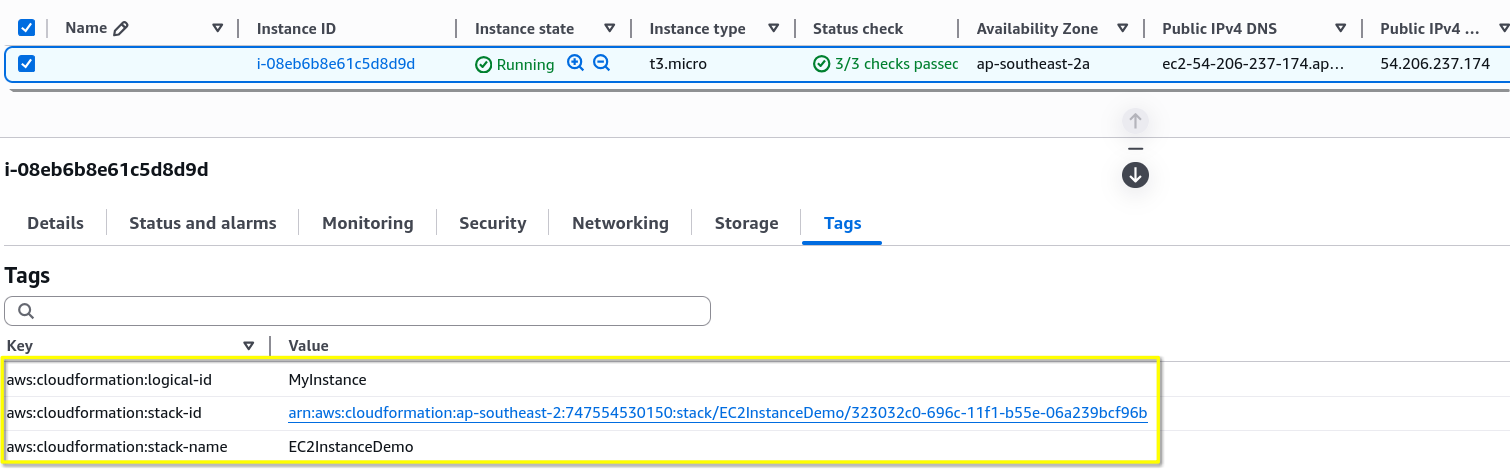
i-0xxxxxx), and click it. This jumps you straight into the live Amazon EC2 Dashboard. - Metadata Tag Verification: Look at the Tags tab on the newly created instance. CloudFormation automatically injects three system auditing tags onto every resource it spins up:
Exam Tips
- AMI Region Locking Trap: This is a huge trap on the developer exam. AMIs are strictly region-specific. An AMI ID that represents Amazon Linux 2023 in
us-east-1does not exist or points to a completely different image inap-southeast-2(Sydney). If a question states that an uploaded template works perfectly in one region but crashes with an object isolation error when deployed in another, the hardcodedImageIdvalue is the root cause. - Tracking Resource Origin via Tags: If an auditing scenario asks how to quickly identify which specific CloudFormation stack created an untagged, orphaned volume or EC2 instance inside a crowded corporate account, look for answers that check the standard prefix tags:
aws:cloudformation:stack-nameandaws:cloudformation:logical-id. CloudFormation appends these by default without you writing them.
Practice Test
Question: A development team copies a valid AWS CloudFormation template that successfully deploys an auto-scaled development environment in the us-east-1 region. However, when they attempt to deploy the exact same template file inside the eu-west-1 region to spin up a European staging cluster, the stack creation immediately fails and returns the error status: CloudFormation received a 400 response. Value (ami-0c7217cdde317cfec) for imageId is invalid. How should the developer fix this? - A. Grant the CloudFormation execution service role explicit IAM permissions to perform s3:GetObject against global bucket targets. - B. Modify the template to use a t2.micro instance type instead of regional compute boundaries. - C. Replace the hardcoded ImageId value with the corresponding valid AMI identifier unique to the eu-west-1 region, or abstract it using a CloudFormation Mappings block. - D. Re-run the stack creation process using JSON format instead of YAML to bypass string validation checks.
Correct Answer: C. Because AMI IDs are strictly bound to their respective geographic AWS regions, copying a template with a hardcoded image ID across regional lines will cause the stack generation engine to fail. The value must be updated to match the target region's local image catalog.