Lambda Container Images - Hands On
This hands-on lab is something that I made for myself, the course only cover the overview of the feature, however I found it very interesting and I never use it in my previous role before. This also good time to revise our knowledge about ECR that we learn in the previous section.
Using Amazon ECR to house multi-gigabyte serverless runtimes completely untethers your application from the legacy deployment script hurdles.
🛠️ Step-by-Step ECR-to-Lambda Container Deployment Hands On
1. Hardening the Architecture Configuration
1. The Application Code (index.mjs)
export const handler = async (event, context) => {
  return {
    statusCode: 200,
    body: JSON.stringify({ message: 'Hello from Lambda Container, bro!' }),
  };
};
2. The Dockerfile
Let's optimize that Dockerfile step. To prevent Docker from constantly running slow npm install executions whenever you change a single string inside your business code, split your copy actions to maximize Docker’s built-in layer cache matching:
FROM public.ecr.aws/lambda/nodejs:24

# 1. Establish the platform task execution workspace root directory
WORKDIR ${LAMBDA_TASK_ROOT}

# 2. Copy ONLY the dependency manifest layers first
COPY package*.json ./

# 3. Run a clean, isolated production-only build hook
RUN npm install --only=production

# 4. Copy your actual application source code assets (Changes frequently, goes last!)
COPY index.mjs ./

# 5. Route the microVM command hook straight to your handler method
CMD [ "index.handler" ]
2. The Command Line Delivery Loop (CloudShell / Local Terminal)
Before building, verify you've spun up your ECR repository. Run this terminal layout loop sequentially to build, tag, and push your asset bundle down the wire:
# initiate the npm package manager and generate the package.json manifest file
npm init -y

# Step A: Provision the central image repository (Skip if already exists)
aws ecr create-repository --repository-name my-lambda-repo --region <your-region>

# Step B: Authenticate your local Docker daemon with the ECR Private Registry
aws ecr get-login-password --region <your-region> | docker login --username AWS --password-stdin <your-account-id>.dkr.ecr.<your-region>.amazonaws.com

# Step C: Compile the Docker layer blocks locally. I added the --provenance=false flag to avoid the deployment error, from my research, this is a known issue if you build your Docker image on modern Docker setup (Docker Desktop on Mac or Linux).
docker build --provenance=false -t my-lambda-container:latest .

# Step D: Apply the explicit ECR repository tag signature mapping
docker tag my-lambda-container:latest <your-account-id>.dkr.ecr.<your-region>.amazonaws.com/my-lambda-repo:latest

# Step E: Stream the binary data payload upstream to the AWS backbone
docker push <your-account-id>.dkr.ecr.<your-region>.amazonaws.com/my-lambda-repo:latest
3. Executing the Infrastructure Provisioning Command
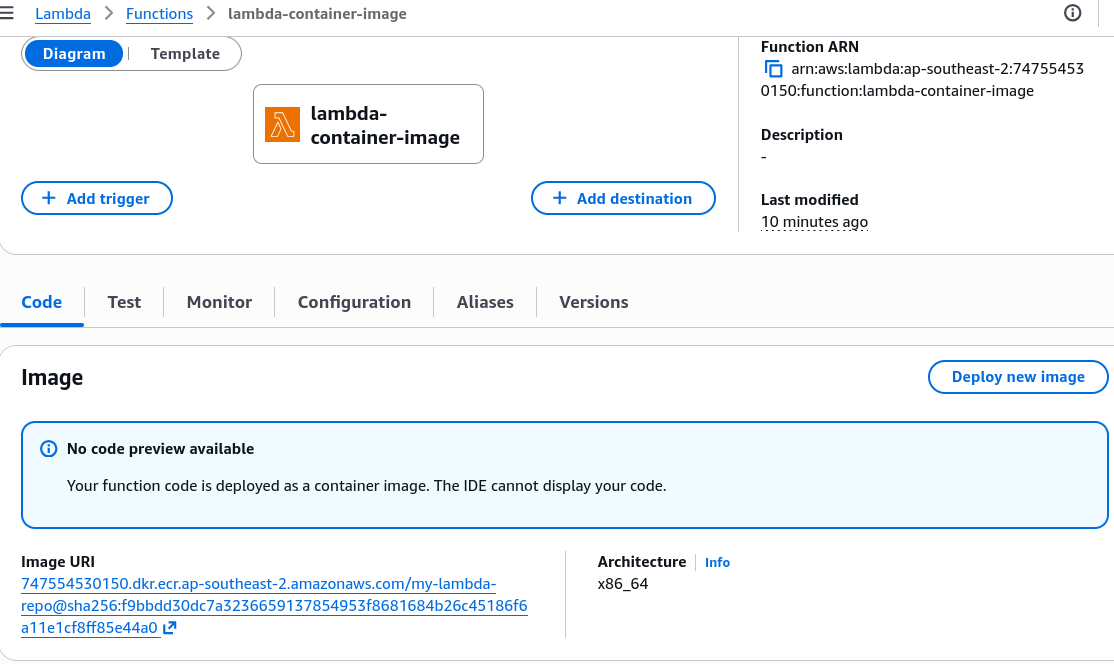
Once the binary bytes land safely inside your ECR image index dashboard, fire the create-function command block to instantiate your container-backed runtime workspace, chief:
aws lambda create-function \
    --function-name my-container-lambda \
    --package-type Image \
    --code ImageUri=<your-account-id>.dkr.ecr.<your-region>.amazonaws.com/my-lambda-repo:latest \
    --role arn:aws:iam::<your-account-id>:role/your-lambda-execution-role
Exam tips
- The Silent Overwrite Pitfall (The "latest" Tag Trap): This is an absolute milestone favorite exam trap, bro. If you rebuild your container code, push the new image to ECR overwriting the exact same
latesttag signature, and do nothing else—your Lambda function will continue running your old code! The Lambda service locks down onto the explicit SHA-256 image digest hash when it initializes. To push your changes live into production, you MUST run the explicitaws lambda update-function-codeAPI command to tell the platform control plane to refresh its underlying container environment pool! - The Non-AWS Base Image Exception: If an exam prompt specifies that a team wants to build a Lambda container image from a base Alpine Linux or standard Ubuntu image instead of an AWS-provided one, look for the runtime requirement. You must programmatically build and include the Lambda Runtime Interface Client (RIC) into that custom Dockerfile, or the container won't know how to talk to the Lambda orchestration backend and will drop an immediate boot error.