Lambda Environment Variables - Hands On
You write your core business logic once, and you let the infrastructure layer change how that code behaves depending on its landing pad.
🛠️ Step-by-Step Environment Variables Hands On
1. Hardening the Code Logic (Node.js Bindings)
-
Step 1: Core Packaging Ingestion
- Boot up a fresh function from scratch named
lambda-config-demousing the Node.js runtime environment.
- Boot up a fresh function from scratch named
-
Step 2: Inject the OS Module
- Open your code editor and update your handler function to this clean snippet:
export const handler = async (event) => {
  const targetEnvironment = process.env.ENVIRONMENT_NAME || 'local-sandbox';
  const response = {
    statusCode: 200,
    body: JSON.stringify(`Hello from ${targetEnvironment}`),
  };
  return response;
};
- Hit Deploy to push your source code alterations live into the microVM memory stack.
2. Mutating the Environmental State
-
Step 3: Establish the First Config State (
dev)- Click the Configuration tab inside your function workspace ──► select Environment variables from the sidebar list matrix.
- Hit Edit ──► click Add environment variable.
- Input Key:
ENVIRONMENT_NAMEand Value:dev. Hit Save.
-
Step 4: Execute a Test Run
- Jump back to the Test tab, generate a generic mock JSON event array template, and hit Test. The console returns your clean success string:
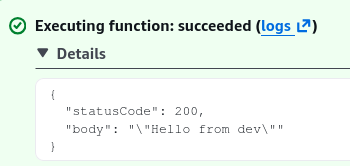
- Jump back to the Test tab, generate a generic mock JSON event array template, and hit Test. The console returns your clean success string:
3. The Power Play: Upgrading to Production Live
- Step 5: Toggle the Variable Without Code Re-builds - Go right back to Configuration -> Environment variables, click Edit, and change the
devvalue string parameter to readprod. Hit Save.
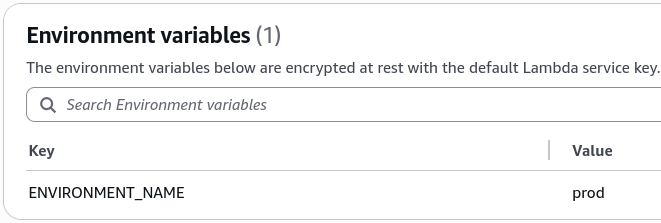
- Step 6: Re-test the Core Invocation
- Hit the Test button once more. Notice how the source code did not change or re-compile, yet the execution response payload instantly updates to output:
"Hello from prod".
- Hit the Test button once more. Notice how the source code did not change or re-compile, yet the execution response payload instantly updates to output:
Exam Tips
- The Local Cache Bug Trap: Always remember, environment variables are read and bound during the Cold Start/Init Phase of a Lambda instance. If you update your environment variables via the AWS CLI or CloudFormation under heavy production loads, warm containers already sitting in the scaling pool won't read the new string instantly. AWS must cycle them down and boot fresh microVM platforms to fully apply the updated variables across your entire scaling tier.