Lambda Function URL - Hands On
This hands-on run locks down the exact mechanics of how the AWS control plane maps public network pathways to your serverless code.
🛠️ Step-by-Step Function URL Provisioning Hands On
1. Preparing the Code and Baseline Version
-
Step 1: Bootstrap the Core Handler
-
Spin up a new function from scratch named
lambda-demo-urlusing the Node.js 24.x runtime tier. -
Ensure the handler returns a standardized HTTP-compliant object block structure:
export const handler = async (event, context) => {return {statusCode: 200,body: JSON.stringify('Hello from the public container URL'),};};
-
-
Step 2: Establish the Immutable Release Snapshot
- Click Deploy ──► head to the Versions sub-tab ──► click Publish new version and tag it as
Version 1.
- Click Deploy ──► head to the Versions sub-tab ──► click Publish new version and tag it as
-
Step 3: Create the Routing Target Alias
- Navigate to Aliases ──► click Create alias.
- Name it
dev, set the pointer target toVersion 1, and click Save.
2. Attaching the Public HTTPS Entrypoint
Now that your routing target is live, let's provision the physical network lane directly onto the alias namespace, bro:
- Step 4: Generate the URL Enclosure
- From your
devalias view dashboard, scroll down to the Function URL sub-drawer (or click it on the left-hand configuration panel sidebar) ──► click Create Function URL. - The Security Selection Levers: Toggle the Auth type selection block explicitly to
NONE. - The Automated Guardrail Check: Notice the platform automatically renders a warning check box indicating it will inject an open public statement into your resource-based policy, assigning wildcard (
*) access to thelambda:InvokeFunctionUrlAPI action, chief. Check the box to accept. - Leave the advanced CORS configurations switched off for this run and click Save.
- From your
🔍 3. Live Endpoint Verification and Architecture Limits
The console will instantly display a permanent, globally accessible HTTPS string signature mapped directly to your alias footprint, following this layout model:
https://<random-string>.lambda-url.<region>.on.aws/
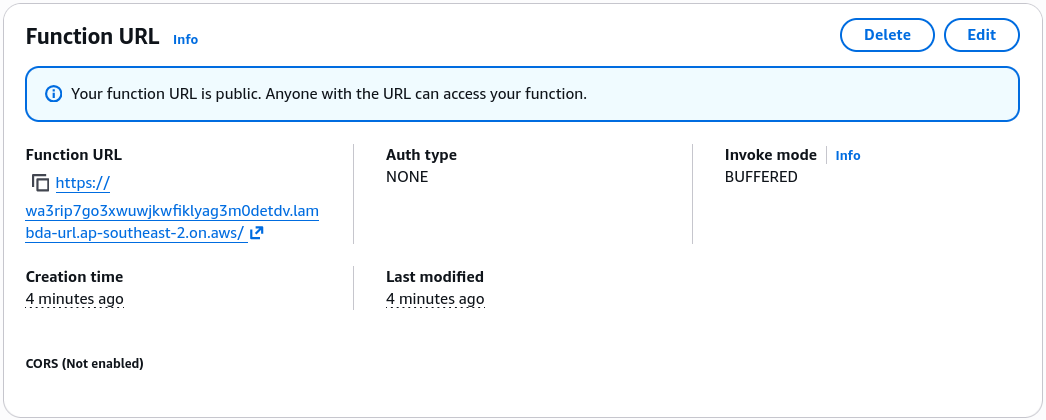
- Step 5: Hit the Public Backbone Line
- Click the link or use your terminal console to fire an explicit
curlcommand down the wire, bro:
- Click the link or use your terminal console to fire an explicit
curl https://wa3rip7go3xwuwjkwfiklyag3m0detdv.lambda-url.ap-southeast-2.on.aws/
# Returns: "Hello from the public container URL"
🛑 The Absolute Platform Structural Rule (Exam High-Priority):
If you drop down the configuration dashboard and try to attach a Function URL directly while viewing Version 1, the console will slap you with a hard system error notice block, chief:
⛔ THE QUALIFIER LIMIT LAW: You can ONLY provision and attach an AWS Lambda Function URL to the volatile, unpublished
$LATESTbranch context or to a named, mutable Function Alias (likedevorprod). You are strictly blocked from attaching a Function URL directly to a raw hardcoded version number (like :1 or :2)!
Exam Tips
- The Alias Separation Strategy: In a production pipeline layout, you should never attach your Function URL to the
$LATESTbranch directly, chief. If a teammate saves a broken code draft to$LATEST, your live web endpoint will crash instantly. Instead, always follow Stephane's design pattern: create an alias likeprodordev, point it to a frozen, immutable version number, and attach the Function URL safely to that alias wrapper.