Lambda in VPC - Hands On
Stephane’s hands-on lab clears up one of the absolute biggest points of confusion for developers working with serverless networking: the platform permission model and the generation of physical interfaces.
🛠️ Step-by-Step VPC Mapping Hands On
1. Provisioning the Security Enclosure (EC2 Console)
- Step 1: Create the Isolated Security Group
- Head to the EC2 Management Console ──► click Security Groups ──► hit Create security group.
- Name it
Lambda-SGand assign it to your target target VPC. - Leave the Inbound rules blank (nothing needs to initialize an inbound socket straight to your function's isolated runtime). For Outbound rules, leave the default
All Traffic (0.0.0.0/0)active so your code can push data downstream, chief!
2. ⚠️ The Ultimate Permission Fail: Bridging the ENI Interface
If you try to select your subnets and apply your new security group right out of the box in the Lambda Console, the platform will throw an immediate red validation error error block
- Step 2: Attach the Managed Network Management Policy
- Go to your function’s Configuration -> Permissions tab and click the IAM execution role link.
- Click Add permissions ──► Attach policies.
- Search for the explicit managed policy named
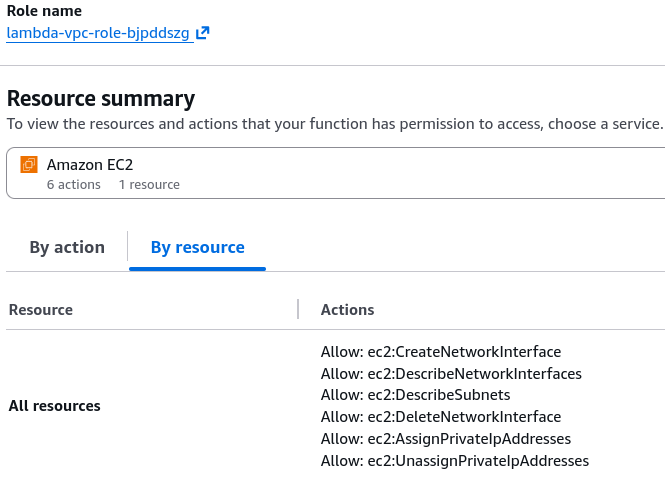
AWSLambdaVPCAccessExecutionRole(in older environments, this maps asAWSLambdaENIManagementAccess). - Why? This grants your function the exact security clearance needed to talk to your network layer:
ec2:CreateNetworkInterfaceec2:DescribeNetworkInterfacesec2:DeleteNetworkInterface
3. Setting Up the Network Topology
- Step 3: Bind the Subnets and Security Group
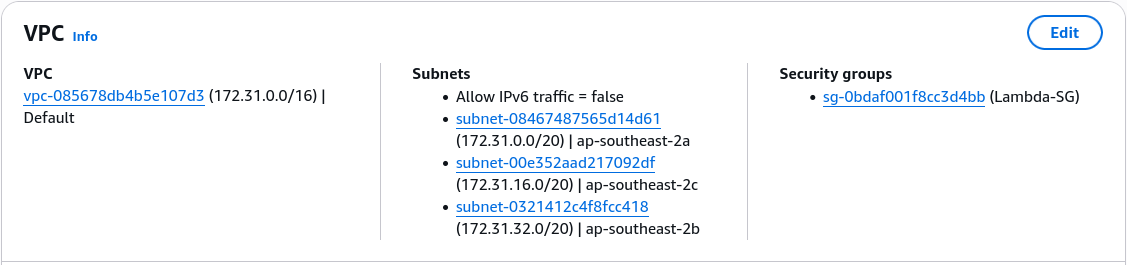
- Jump back to your Lambda configuration dashboard ──► click VPC on the sidebar ──► hit Edit.
- Select your target VPC ID.
- Choose at least 2 or 3 distinct subnets (ideally across different Availability Zones for high availability).
- Attach your newly created
Lambda-SGand hit Save. - The Compilation Pause: As Stephane noted, the initial network tunnel creation can take up to a few minutes to bake inside the AWS control plane. The platform status banner will read
Updatingwhile AWS provisions the hyperplanes, chief.
4. 🔍 Verification and Forensic Interface Auditing
Once the configuration flips to a green Active state, trigger a manual test run using a dummy JSON mock array payload. The invocation returns a clean 200 OK success block.
Now, jump out to the EC2 Console -> Network Interfaces (ENIs) dashboard. You will see an array of interfaces generated inside your account space, matching your subnets:
Interface ID        | Subnet ID    | Security Group | Description
------------------------------------------------------------------------------------------------------------------
eni-0123456789abcdef0 | subnet-az1   | Lambda-SG      | AWS Lambda Predicate - Hyperplane ENI for function Lambda-VPC
eni-0abcdef1234567890 | subnet-az2   | Lambda-SG      | AWS Lambda Predicate - Hyperplane ENI for function Lambda-VPC
eni-07890abcdef123456 | subnet-az3   | Lambda-SG      | AWS Lambda Predicate - Hyperplane ENI for function Lambda-VPC
🧠 Core Architectural Rules for the DVA-C02 Exam:
- Hyperplane Scale Architecture: Notice the description field says
AWS Lambda Predicate - Hyperplane ENI, bro. This confirms that even if your function scales out horizontally to handle 5,000 parallel concurrent executions simultaneously, it will only use these exact persistent ENI channels. It does not spawn a separate ENI for every microVM environment instance! - The Internet Denial Warning: Even though Stephane bound the function to subnets that carry route table rules pointing to an Internet Gateway (Public Subnets), this function has zero public internet access! If your code executes a
requests.get('https://api.github.com')API call right now, it will hang and throw a timeout error, chief. To give it public web access, you must migrate the configuration to Private Subnets routed directly through a NAT Gateway.