API Gateway Basics Hands On
Watching your multi-route REST API come alive directly in the browser window is exactly where the true magic of full-stack serverless engineering clicks into place, bro! 👑🌐
Stephane’s lab perfectly demonstrates how API Gateway acts as the ultimate decoupled abstraction layer. Instead of writing massive, monolithic routing charts inside an Express or Django server, you declare clean paths (/ and /houses) inside the AWS management console, mapping individual paths directly down onto micro-sized, highly focused Lambda functions.
🛠️ Step-by-Step API Gateway Baseline Hands On
1. Provisioning the Edge Perimeters
- Step 1: Declare the Root Engine
- Open the API Gateway console ──► scroll to REST API (Public) ──► click Build.
- Select New API. API Name:
MyFirstAPI. - The Endpoint Constraint Select: Choose Regional to keep the entry endpoint local. (Remember: For real production lines with international global users, you'd pull the Edge-optimized lever to route packets through global CloudFront edge locations!).
- Choose SecurityPolicy_TLS13_1_2_2021_06 as the security policy and IPv4 as IP address type. Click Create API.
- Step 2: Bind the Root Methods
- Click your root
/path folder ──► hit Create method. - Method type:
GET - Integration type: Lambda function
- Toggle Lambda proxy integration to
Enabled💡 (This is crucial, bro! It signals the gateway to pass the raw HTTP headers and request context straight down to the function untouched).
- Click your root
2. Deep-Dive Integration Boundaries: The 29-Second Hard Wall
When you paste your Node.js runtime ARN string into the gateway handler, the system automatically writes an internal Resource-Based Permission Policy straight onto the Lambda instance behind the scenes, whitelisting lambda:InvokeFunction specifically for the gateway's source ARN string.
However, you must commit this absolute platform law to your core architecture memory:
🚨 THE API GATEWAY TIMEOUT MAXIMUM:
   ┌─────────────────────────────────────────────────────────────┐
   │ [Client Browser] ──► Pings API Endpoint ──► [API Gateway]  │
   │                                                    │        │
   │                        (Hard Execution Ceiling)    │        │
   │                        ⚠️ MAXIMUM = 29 SECONDS     │        │
   │                                                    ▼        │
   │                   [Lambda Function: 15-Minute Timeout Limit]│
   └─────────────────────────────────────────────────────────────┘
THE 29-SECOND API GATEWAY TIMEOUT LAW: Even if your background Lambda function is configured with its maximum execution limit of 15 minutes, API Gateway enforces a hard, unyielding maximum timeout ceiling of exactly 29 seconds!
If your function takes 30 seconds to calculate an analytical report, the API Gateway will violently drop the socket connection client-side and throw a 504 Gateway Timeout exception block to the browser, even though the backend Lambda worker keeps spinning in the background! Always design deep analytical processes to run asynchronously using an SQS queue or Step Function decoupling pass.
📊 3. The Structural Anatomy of Proxy Contracts
Because we checked the Lambda Proxy Integration box, the input and output formats must match a highly specific string contract.
📥 The Incoming event Vector (What Lambda Receives)
When you inspected CloudWatch Logs after executing a print(event) call, you saw a massive JSON map outlining the entire HTTP lifecycle:
{
  "resource": "/houses",
  "path": "/houses",
  "httpMethod": "GET",
  "headers": {
    "Accept": "text/html,application/xhtml+xml,xml",
    "Host": "x1y2z3.execute-api.us-east-1.amazonaws.com",
    "User-Agent": "Mozilla/5.0..."
  },
  "queryStringParameters": {
    "voter_id": "123"
  },
  "requestContext": {
    "stage": "dev",
    "identity": { "sourceIp": "203.0.113.195" }
  },
  "body": null
}
📤 The Mandatory Outbound Response Dictionary (What Lambda MUST Return)
Because the gateway is acting as a blind proxy, your backend Node.js code cannot just return a raw text string. If your code outputs a simple string like "Hello World", the gateway engine will panic, fail to interpret the payload, and return a 502 Bad Gateway crash code to the client browser!
Your handler function MUST return a precisely formatted dictionary block containing these three keys, chief:
export const handler = async (event, context) => {
  console.log(JSON.stringify(event, null, 2));
  console.log(JSON.stringify(context, null, 2));
  const response = {
    headers: {
      'Content-Type': 'application/json',
    },
    statusCode: 200,
    body: JSON.stringify({
      message: 'Welcome to MyFirstAPI',
      trace: `${context?.awsRequestId}`,
    }),
  };
  return response;
};
Checking Lambda Resource-Based Permissions
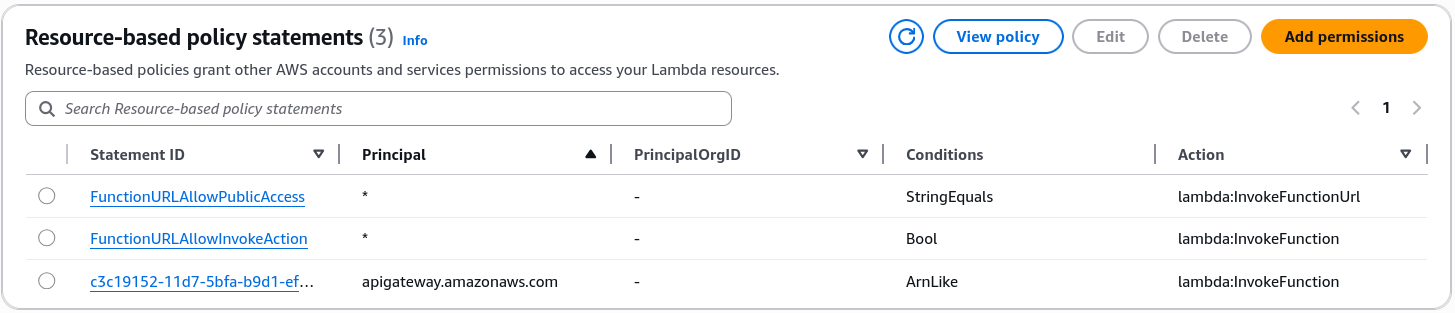
Let's check the Lambda function's Resource-Based Policy to ensure the API Gateway has been granted the lambda:InvokeFunction permission. In the AWS console, navigate to your Lambda function, then go to the Permissions tab. Under Resource-based policy, you should see a statement that allows the API Gateway to invoke your function.
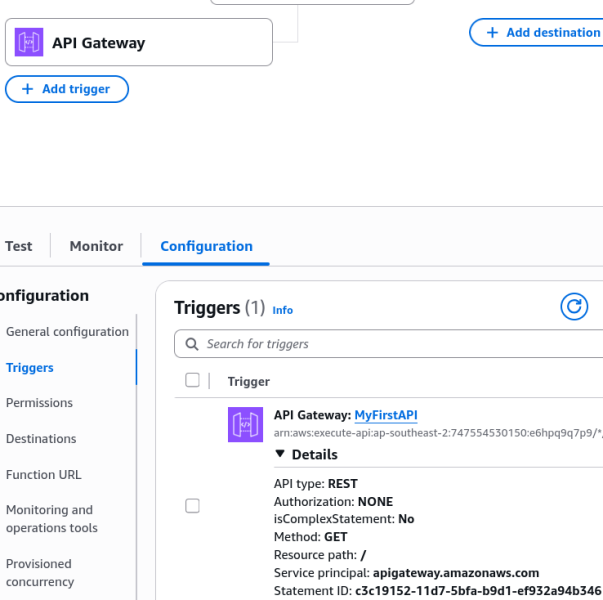
Also Observe the Trigger tab, which shows the API Gateway as a trigger for your Lambda function.
Deploy API
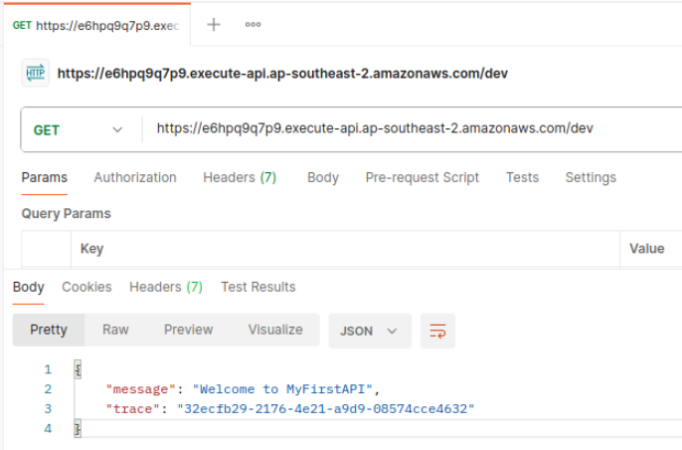
To get the Invoke URL, you need to deploy your API.
- In the API Gateway console, select your API, then click on Deploy API.
- Create a new stage (e.g.,
dev) and click Deploy. After deployment, you'll see the Invoke URL for your API.
Exam Tips
- The Missing Authentication Token Trap: This is a classic exam gotcha, bro. If a developer deploys an API Gateway stage and pastes the invoke URL into a browser window, but misses a path directory or spells a resource wrong (e.g., hitting
/wronginstead of/houses), the gateway returns a misleading{"message": "Missing Authentication Token"}response! The exam will try to trick you into thinking you have an IAM or Cognito permission issue.
The Real Fix: 9 times out of 10, this simply means the client is trying to hit a URL route or HTTP method verb that does not exist on the active deployment stage!