API Gateway Canary Deployments
Setting up API Gateway Canary Deployments is the ultimate way to push rolling updates to your production stack with zero stress and absolute safety, bro! 👑🛡️
In a high-velocity production environment, you never want to execute a blind "big bang" release where 100% of your real-world traffic instantly shifts onto brand-new, unvetted API routing configurations or backend code. If a hidden bug slips through, you risk taking down your entire active user base in a single second.
With Canary deployments, you safely bleed a tiny, controlled fraction of live customer traffic (like 5%) onto your fresh API adjustments. You isolate their logs, watch the error metrics like a hawk, and only promote the changes to the rest of the fleet when you are 100% confident it's bulletproof.
Key Takeaways
🏗️ The Canary Architecture Layout
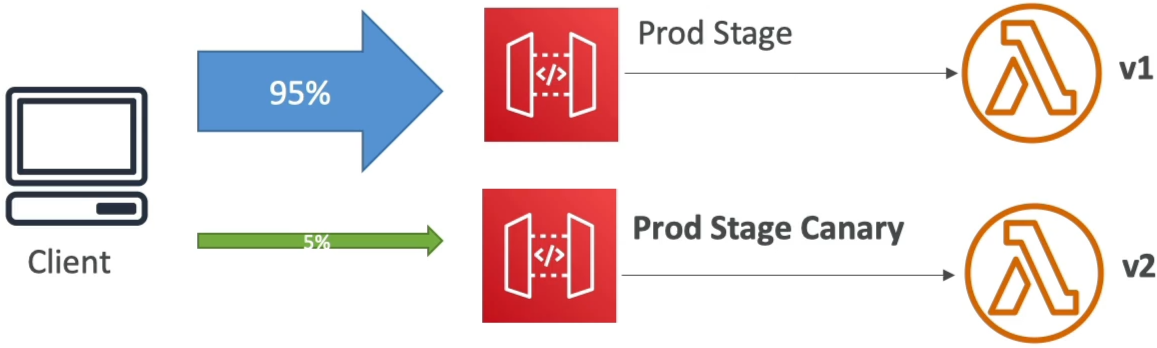
When you activate a Canary configuration directly on a target deployment stage (like prod), API Gateway splits that single environment stage into two distinct, parallel execution tracks under the hood:
🔄 The Progressive Traffic Split:
- The Production Baseline Track: The vast majority of your active traffic (e.g., 95%) keeps routing cleanly to your pre-existing, trusted API Gateway configuration.
- The Canary Test Track: The remaining thin slice of live traffic (e.g., 5%) automatically detours onto your newly updated API settings, routing to your updated backend handlers or modified stage variable hooks.
📊 Deep Metric & Configuration Isolation
The biggest engineering win of using native API Gateway Canaries is how cleanly AWS isolates the blast radius:
- Separated CloudWatch Metrics 📊: API Gateway automatically bifurcates your operational telemetry logs. Canary requests generate their own unique metric dimensions inside CloudWatch. This means you can spot a sudden spike in
5XXerror codes or execution latencies on the new code version instantly, without polluting or drowning out your baseline production health curves! - Stage Variable Overrides: If your stage uses a variable like
${stageVariables.lambdaAlias}pointing toPROD, you can explicitly tell the Canary track to override that exact key to point to a test alias or a specific pre-release version instead. This acts exactly like an elegant, zero-downtime Blue/Green deployment wrapper!
🚀 The Canary Release Lifecycle Flow
To successfully execute a canary rotation out in the field, your deployment pipeline follows this exact three-step dance:
🚀 THE THREE-STEP CANARY RELEASE DANCE:
   ├── Step 1: Create Canary ──► Inject the fresh API changes onto the stage and set the traffic dial to 5%.
   ├── Step 2: Monitor Fields ──► Let live traffic hit it. Inspect isolated logs and verify stability.
   └── Step 3: Promote Canary ──► Hit "Promote". The Canary layout wipes out the old config, taking 100% of traffic!
If anything catches fire during Step 2, you don't need to panic or run complex code rollbacks. You simply click Delete Canary, and the traffic dial immediately snaps back to 100% stable baseline production layout in a fraction of a second, completely shielding your users from the blast radius!
Exam Tips
- The Low Blast-Radius Deployment Scenario: If an exam prompt presents a mission-critical financial or retail application where the operations team wants to test out a brand-new API version using a tiny subset of active real-world production users, and mandates that tracking telemetry logs for the new version must be completely isolated from existing production curves—look straight for API Gateway Canary Deployments on the production stage
- The Quick-Kill Rollback Strategy: If a scenario highlights a rollout that goes sideways (e.g., the canary version starts throwing errors) and demands the fastest way to stabilize the system with zero user impact—the answer is to Delete the Canary configuration directly from the stage settings page. This instantly cuts off the traffic split and restores safety without a deployment loop.