Step Functions - Hands On
Getting hands-on with the visual Workflow Studio and debugging variables inside the execution inspector is how you master serverless state tracking.
Stephane’s console lab highlights the core power of the Amazon States Language (ASL): your entire complex flow maps straight to a centralized, deterministic JSON matrix. If you mutate a variable flag at the top of your execution run, the downstream branching choice nodes react instantly, routing payloads down entirely different architectural tracks while recording every single state transition.
Hands On
🎨 Navigating the Visual Interface Canvas (Workflow Studio)
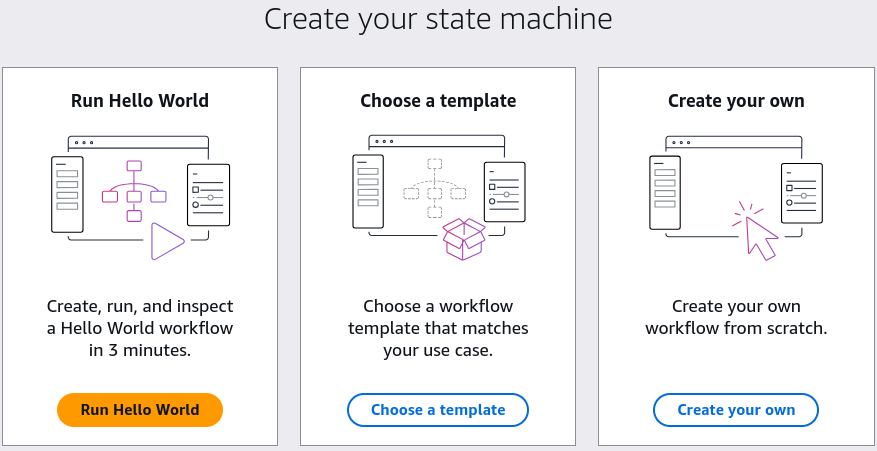
- The Component Dock 🧱: Pop open the Step Functions Console UI ──► hit Create state machine. Choose a Hello World template for now, you can choose a workflow template or create your own workflow if you already familiar with this.
- The left-hand panel exposes a drag-and-drop workspace packed with popular pre-wired AWS service API integrations side-by-side with logical Flow handlers (
Choice,Parallel,Map). You can drag and drop these components onto the canvas to build your workflow visually.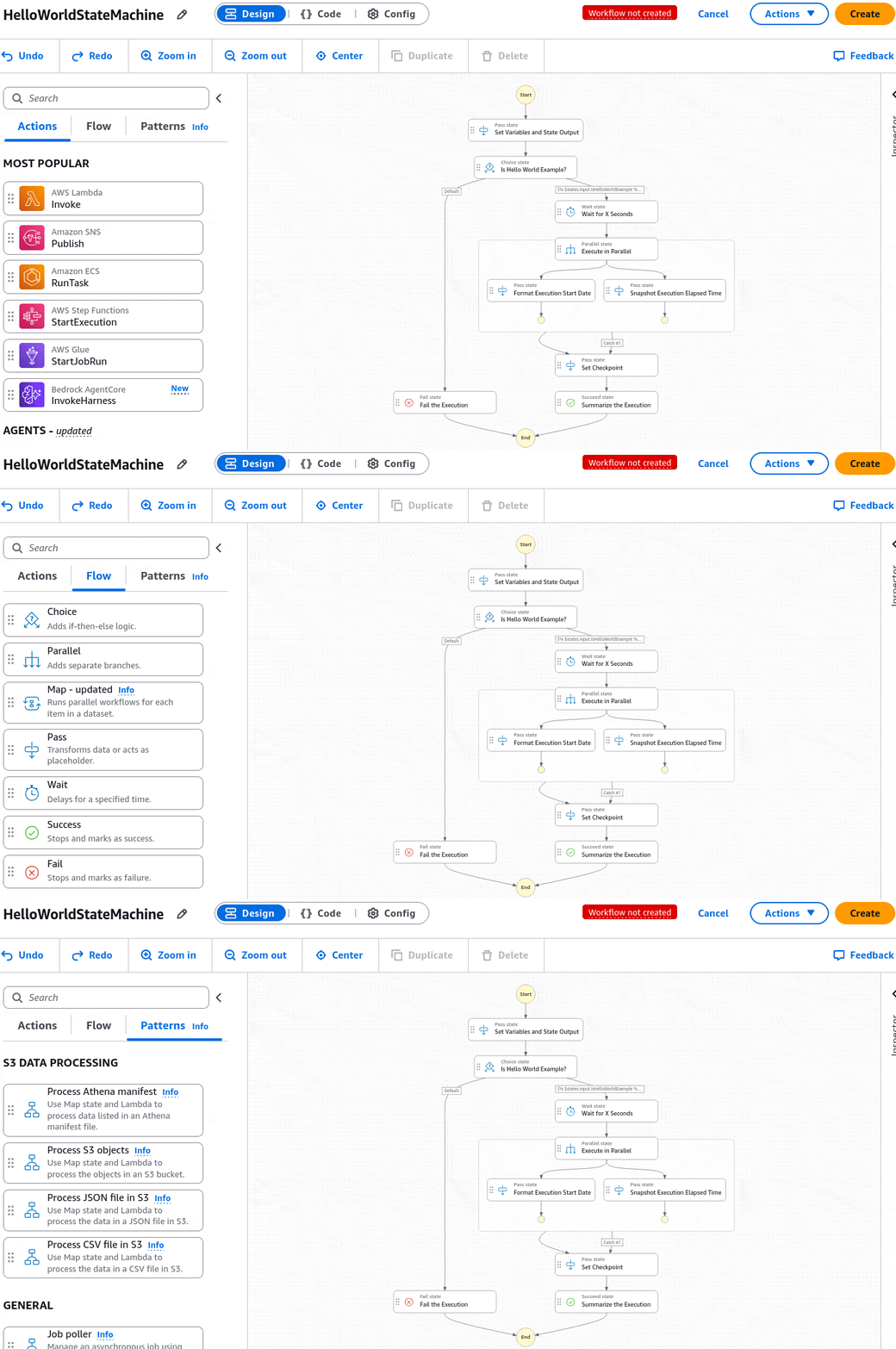
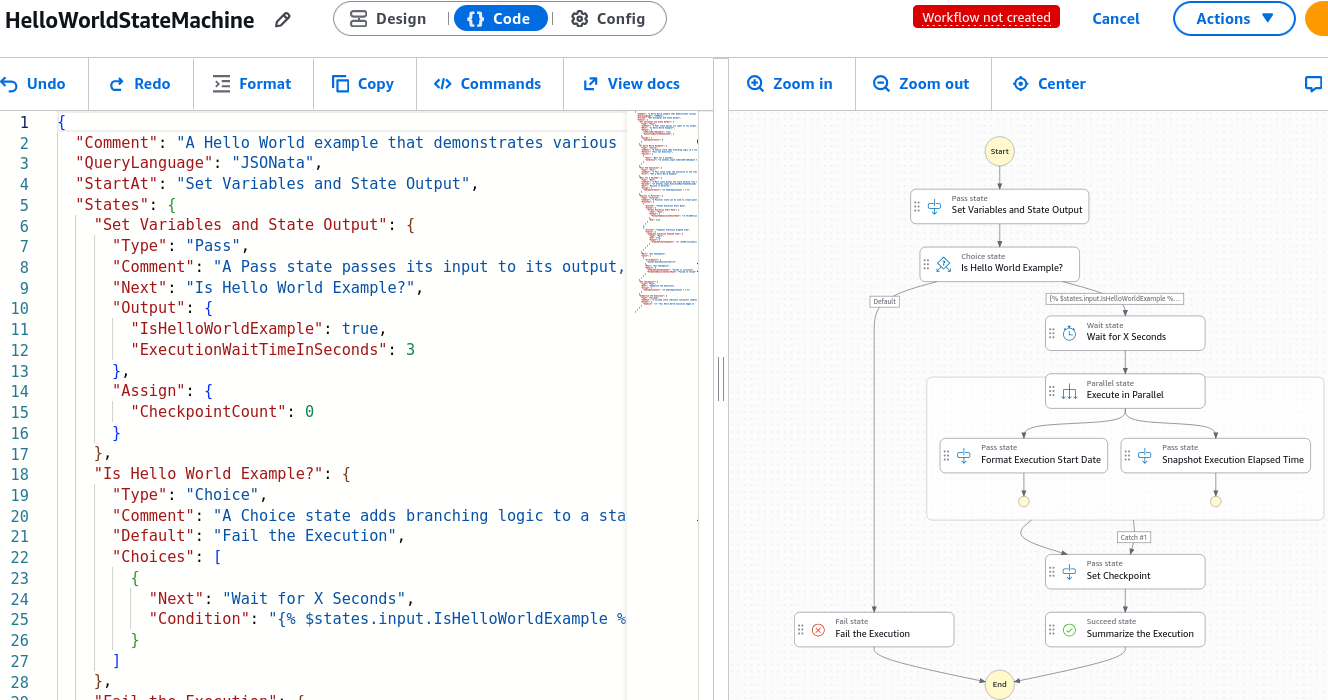
- The Blueprint Synthesis Engine (ASL Code Hub) 📑: As you drag, drop, and configure steps visually on the grid, the console dynamically auto-generates your definitions using the Amazon States Language (ASL) inside a unified JSON object layout. You can see the ASL code generated in Workflow Studio code editor.
- Core Operational Profiles: Before you launch, the properties panel allows you to configure your machine runtime limits:
- The Stack Identity: Naming the machine node parameters.
- The Execution Lane Type: Choosing between Standard (up to 1 year of duration, full state tracking, audited history) or Express (high-throughput, ultra-rapid runs under 5 minutes).
- Security Envelope: Attaching the target IAM execution role to trust the machine to make calls to downstream buckets or functions.
Standard vs. Express
When you hit the initialization configurations page in the lab, you must choose your state machine layout lane. The exam heavily tests whether you know exactly when to pull the trigger on each type:
| Core Parameters | 🛡️ Standard Workflows | ⚡ Express Workflows |
|---|---|---|
| Max Execution Duration | Up to 1 Year continuous runtime. | Up to 5 Minutes absolute maximum. |
| Throughput Capacity | Lower throughput rate, billed precisely per state transition ($0.025 per 1k). | Massive throughput scaling, billed per invocation + execution duration. |
| Execution Semantics | Strict Exactly-Once processing guarantee. | At-Least-Once (Async) or At-Most-Once (Sync) processing. |
| Console Observability | Full, native execution history tracking stored in console for 90 days. | No native console history; relies on streaming logs straight to CloudWatch Logs. |
| Primary Use Cases | Human-in-the-loop approvals, payment pipelines, long batch loops. | High-volume IoT data ingestion, rapid REST API proxies, streaming data. |
📜 Dissecting the Logic Tree (Hello World Flow Rules)
Click directly on the graphical flow blocks to track exactly how data flows down the branch corridors:
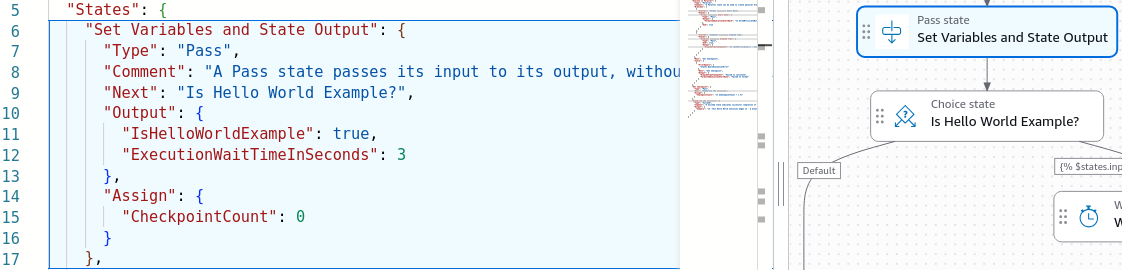
- The Initialization Vector (
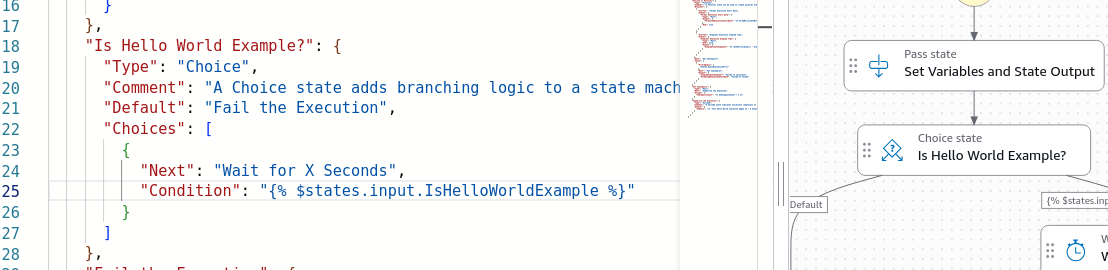
Set Variables & State Output) 🏁: The baseline setup step. It injects a flat parameter map into the stream, declaringIsHelloWorldExample: trueand mapping a dynamic clock delay variableexecutionWaitTimeInSeconds: 3, while starting a tracking counterCheckpointCount: 0.
- The Guardrail Fork (
Choice State) 🔀: Acts as a standard programmaticif/elseconditional logic block.- The Metric Rule: It evaluates the token parameter string
IsHelloWorldExample. - The Split Corridor: If the string evaluates cleanly to
true, the machine unlocks the right-side route branch and drops the traffic down into theWait State. If it catches afalseparameter, it forces a hard pivot straight down the left-side corridor into an absoluteFail State, instantly killing the execution loop.
- The Metric Rule: It evaluates the token parameter string
- The Delay Corridor (
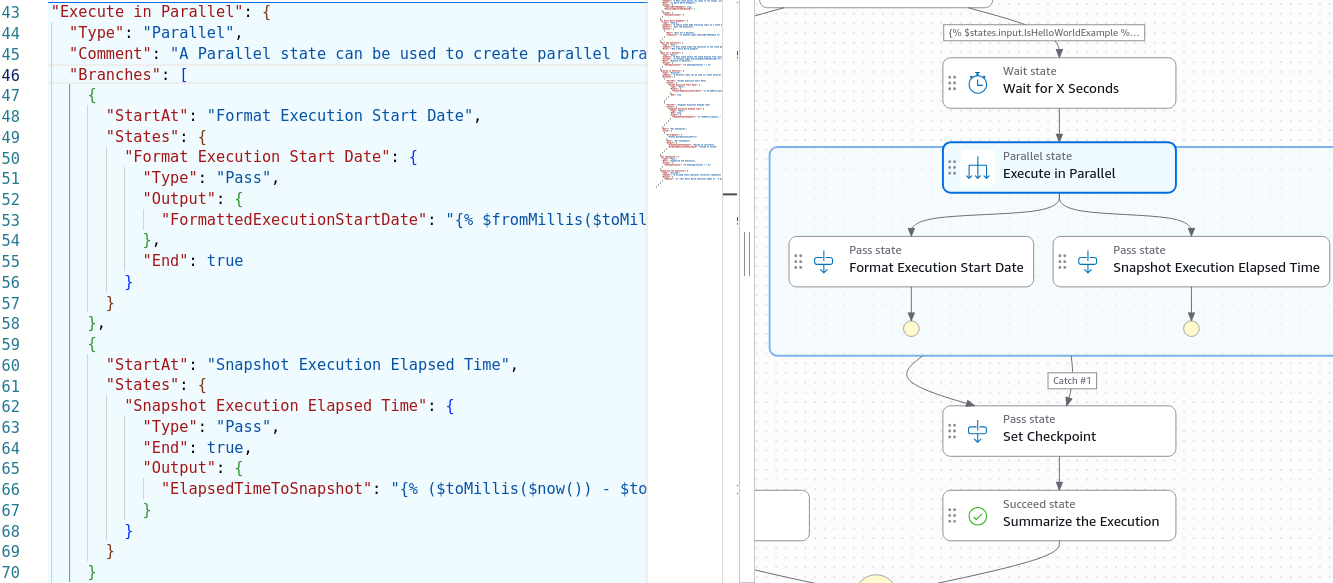
Wait for X Seconds) ⏳: Instead of wasting processing money idling a container or function, this node reads the numeric property payload variable we mapped earlier and cleanly pauses the internal state machine clock for exactly 3 seconds at zero cost.

- The Async Acceleration Core (
Parallel State) 🛤️: Simultaneously kicks off separate, isolated runtime branches concurrently, automatically merging the returning data maps back together into a single unified JSON block when they complete successfully.
- The Goal Line (
Summarize Execution) 🏆: Reaches a standardSucceedstate node, summarizing the tracking data history loops and printing out the final pipeline metric values cleanly. - When you finished configuring the state machine, you can click Create to save your configuration and launch the execution.
🧪 Running the Operational Test Rounds
🟢 Test Run A: The Success Lane (True State)
- Pop open the control bar and hit Start Execution passing an empty JSON input.
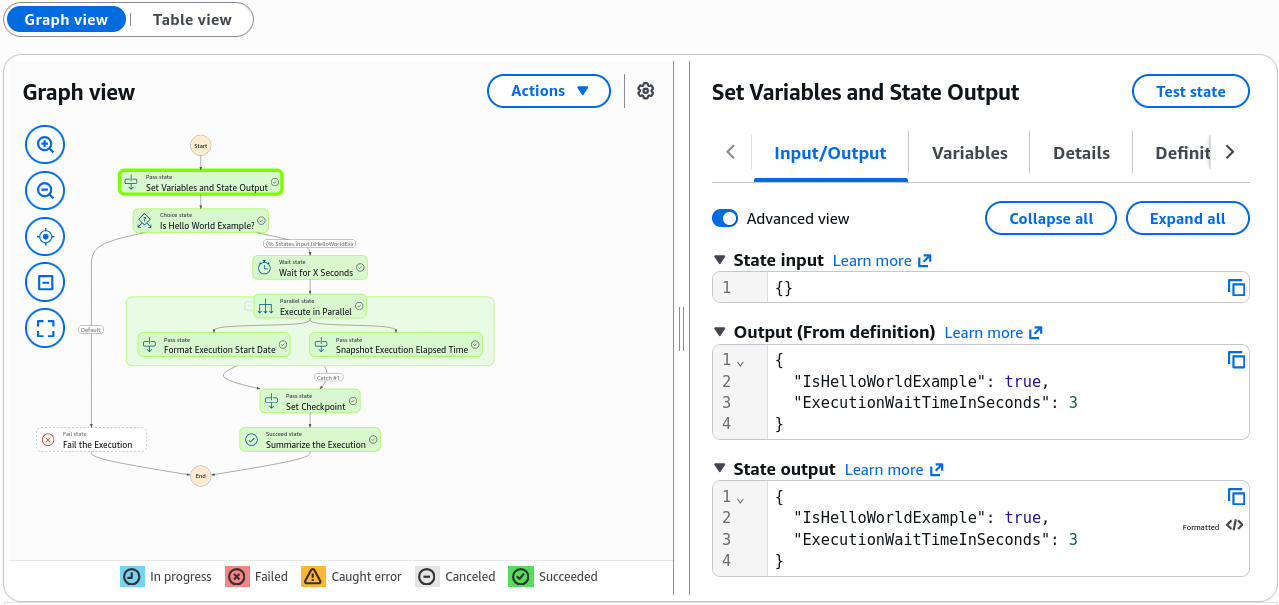
- The Visual Audit: The graph view updates live in real time, chief! The blocks light up a clean Blue (In Progress) as they process, then flip to a solid Green (Success).
- The Data Breakdown: Select any completed state block node. The right-hand panel allows you to dynamically switch between Input, Output, Variables, and Event History tabs. You can watch the
CheckpointCountincrement steadily, and see the final string payload compile perfectly across the endpoints!
🔴 Test Run B: The Auto-Healing Fail Lane (False State)
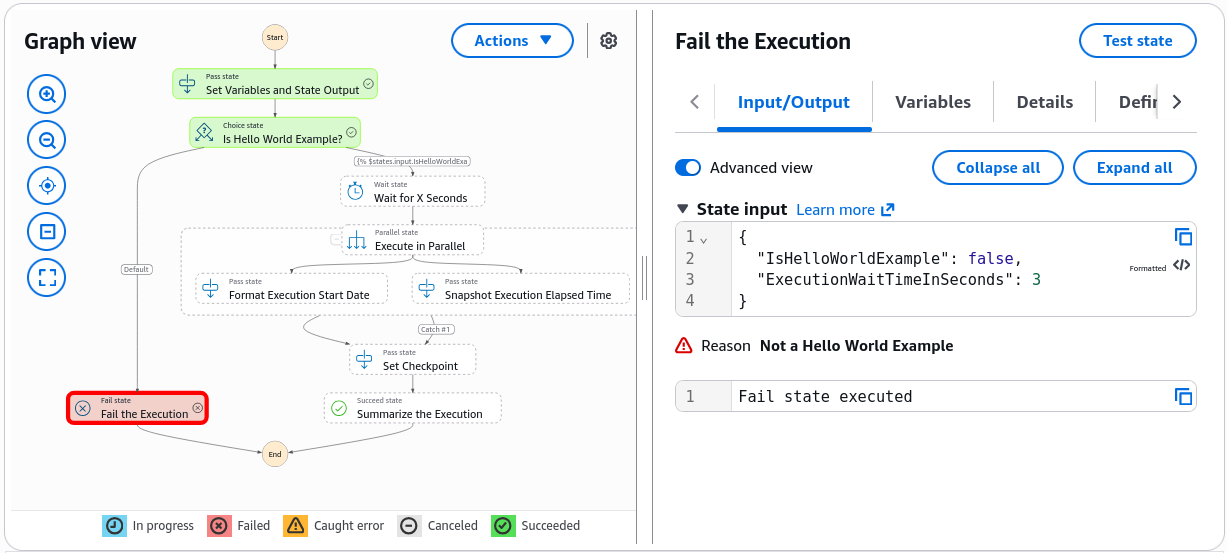
- Hit the code editor layout pane, shift the core initialization property value from
trueover tofalse, and save the changes. - Fire Start Execution a second time.
- The Execution Reality: The choice condition catches the delta instantly! The right-side corridor shuts down entirely, and the left-side corridor lights up a sharp Red (Failed), terminating the pipeline execution stack on the spot with a clean, fully traced validation log inside the Event History panel.
Exam Tips
- The Workflow Type Lock Trap 🚨: This is a classic multi-choice trap on the blueprint! Always keep anchored in your mind that once a State Machine is created in your account, its Workflow Type (Standard vs. Express) is completely immutable and CANNOT be changed or toggled under the hood! If a high-volume data stream forces a pivot from Standard to Express to save massive transition costs, your pipeline script must provision a completely fresh state machine resource stack from scratch and migrate the ASL templates over.
- The High-Volume IoT Cost Optimization Prompt: If an exam scenario presents an architecture group running a Standard Step Function that processes millions of sub-second streaming sensor event inputs per day, resulting in an astronomical AWS bill due to state transition metrics—look straight for the option that copies the ASL code matrix over into a brand-new Express Workflow state machine container to capitalize on duration-based compute pricing.