KMS Hands On w/CLI
Running KMS encryption directly via the AWS CLI is the ultimate way to prove you understand what happens under the hood before the SDK abstracts it away.
Stephane's hands-on demo cleanly highlights how raw binary payloads, base64 encodings, and KMS Key Policies interact.
Here is your scan-ready, easy-to-follow playbook for KMS Hands-On with CLI, bro:
🛠️ 1. Creating the Customer Managed Key (CMK)
- Launch KMS Console: Navigate to AWS KMS ──► Select Customer managed keys ──► Hit Create key.
- Key Configuration:
- Key type:
Symmetric - Key usage:
Encrypt and decrypt - Advanced options:
KMS(Origin),Single-region key(Regionality). 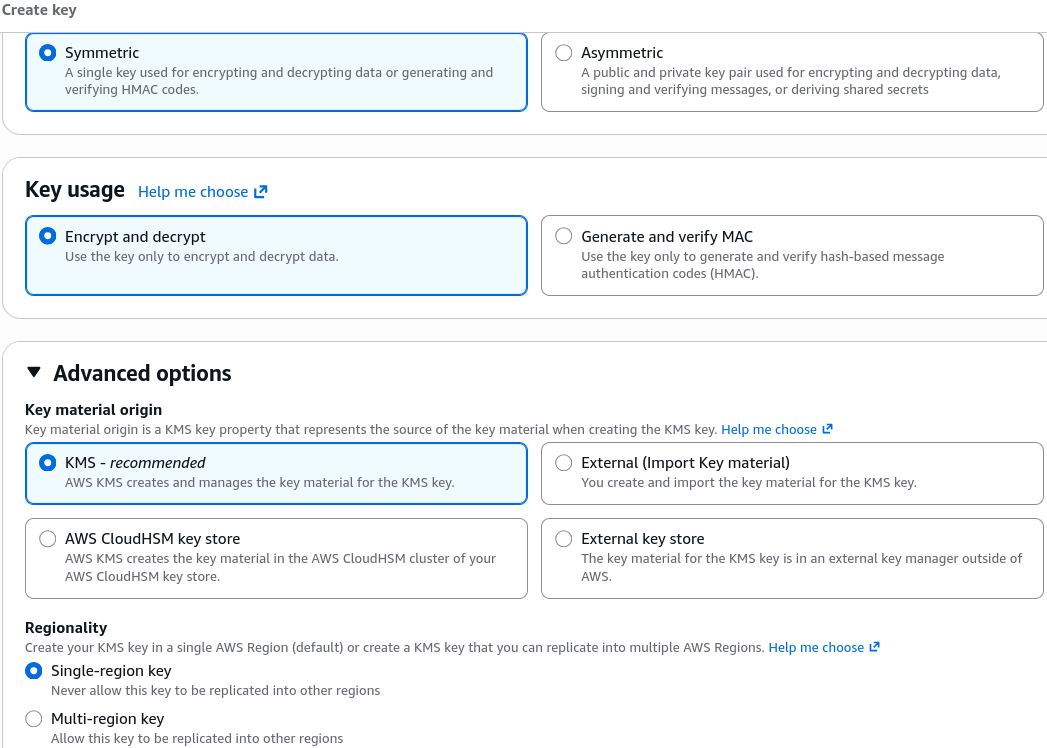
- Key type:
- Set Alias Name: Name the key alias
tutorial(accessible viaalias/tutorial). - Key Policy Setup (Default Policy): Leave Administrators and Key Users empty to default to the standard Root/IAM delegation policy. This enables any user/role with proper IAM permissions (
kms:Encrypt,kms:Decrypt) to use the key.
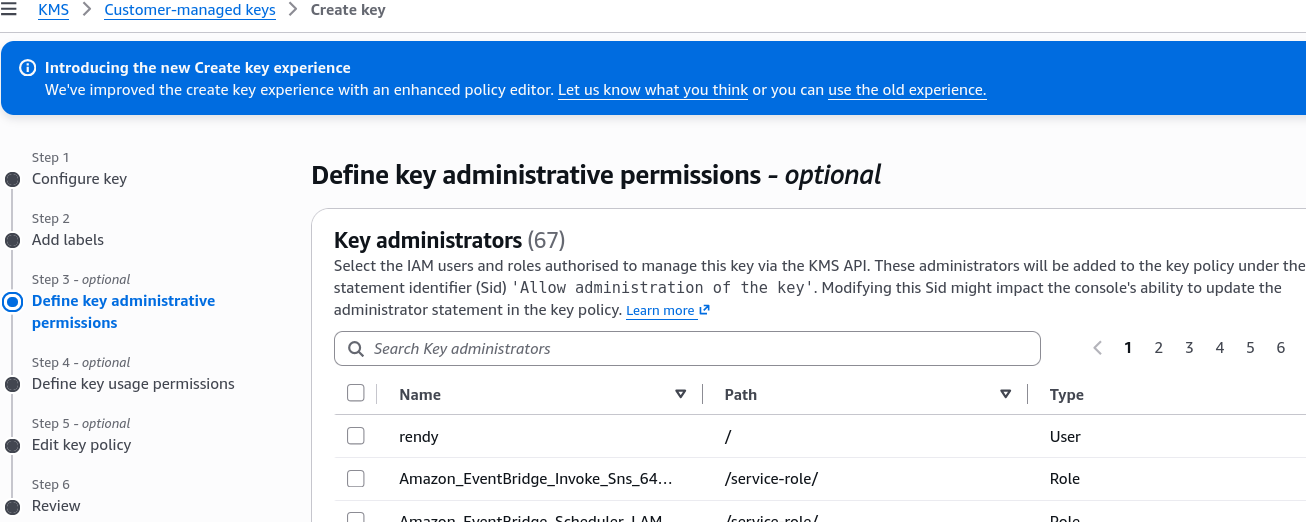
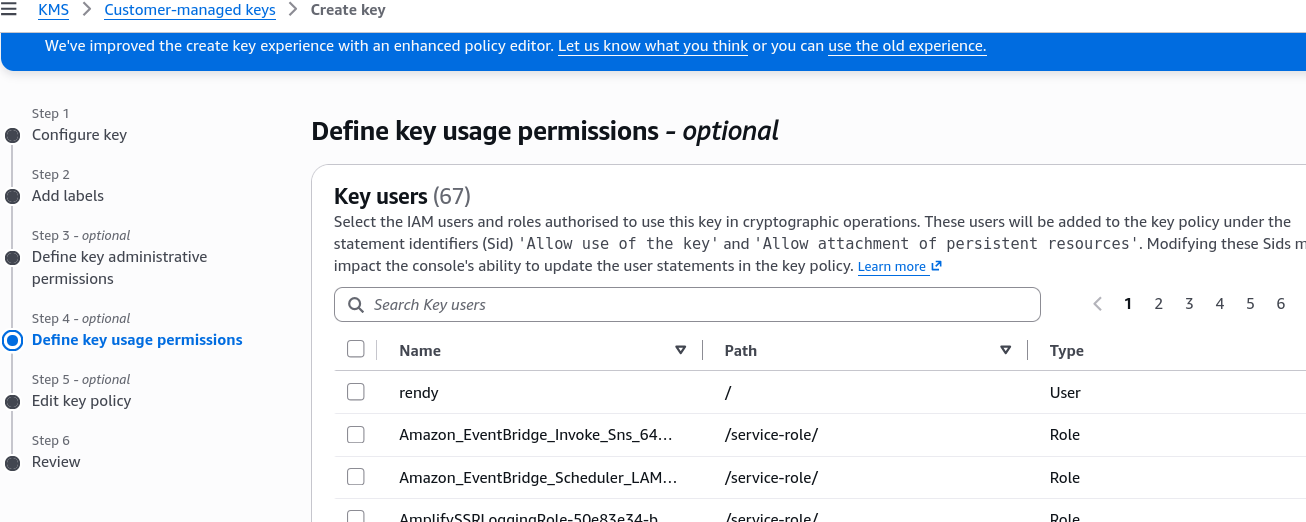
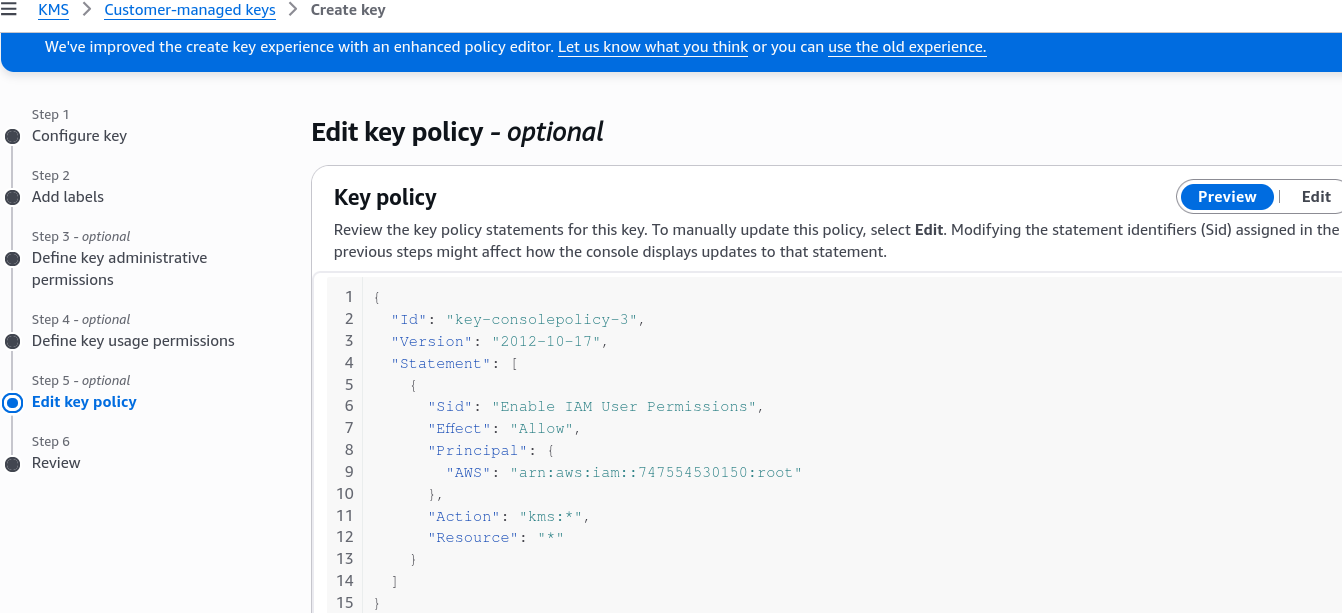
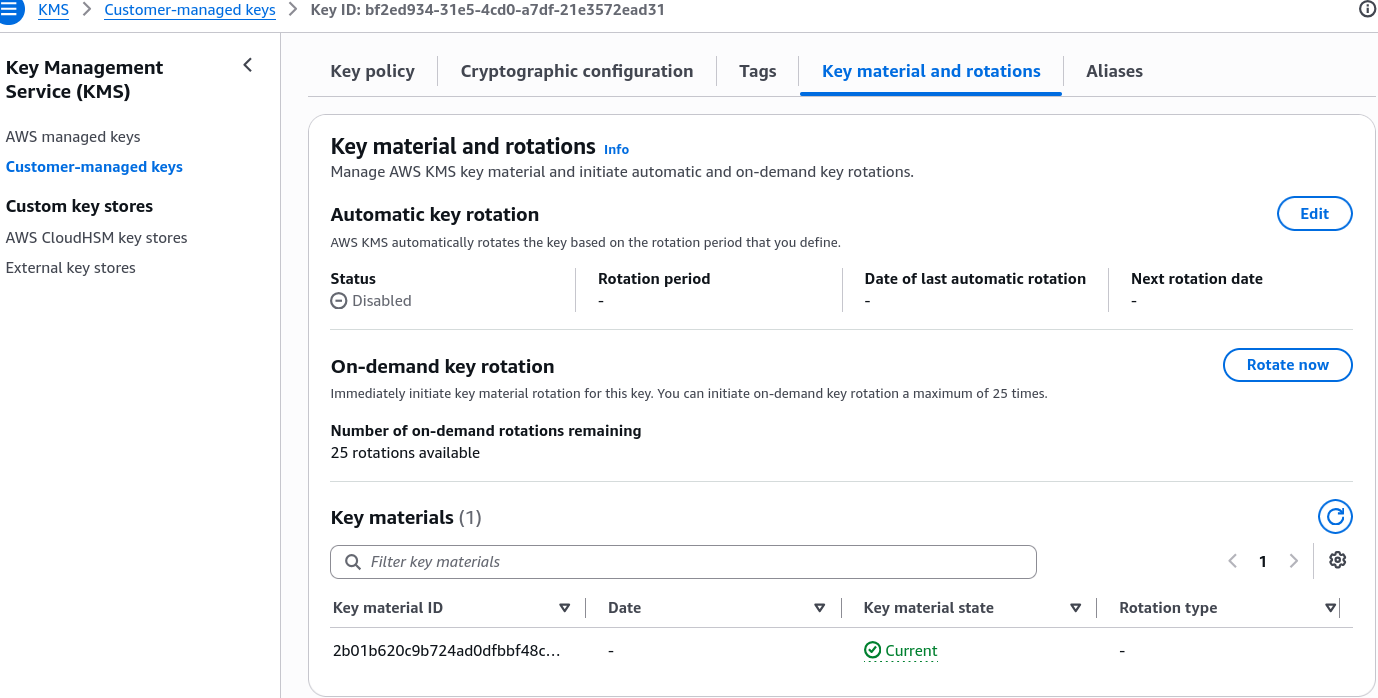
- Enable Rotation (Optional): Once created. Go to the Key rotation tab ──► Enable Automatic key rotation (configurable between 90 to 2,560 days, default 365 days).
🔐 2. CLI Encryption Workflow (Plaintext ──► Ciphertext)
Step A: Create the Target Secret File
Create a plain text file named ExampleSecretFile.txt with your secret text:
SuperSecretPassword
Step B: Call aws kms encrypt
Invoke KMS using the key alias. Output the returned base64-encoded ciphertext directly to a file:
aws kms encrypt \
    --key-id alias/tutorial \
    --plaintext fileb://ExampleSecretFile.txt \
    --output text \
    --query CiphertextBlob \
    --region ap-southeast-2 > ExampleSecretFileEncrypted.base64
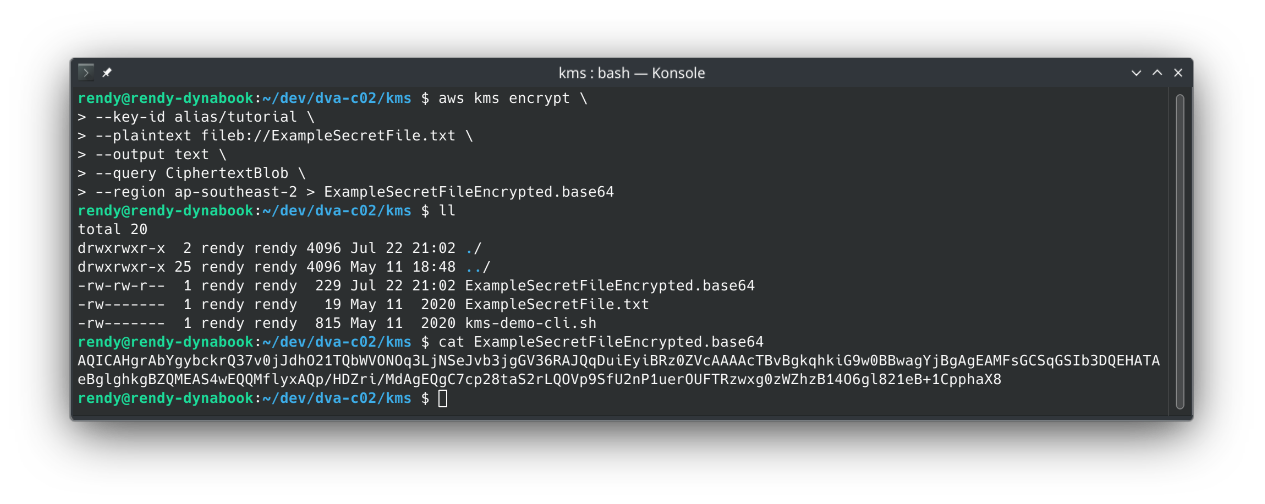 This command encrypts the plaintext file using the
 tutorial CMK and saves the base64-encoded ciphertext (plaintext that has been encrypted) to ExampleSecretFileEncrypted.base64.
Step C: Decode Base64 to Raw Ciphertext Binary
KMS requires raw binary data for decryption. Decode the base64 string into a raw binary file:
- Linux / macOS:
base64 --decode ExampleSecretFileEncrypted.base64 > ExampleSecretFileEncrypted
- Windows (PowerShell):
certutil -decode .\ExampleSecretFileEncrypted.base64 .\ExampleSecretFileEncrypted
🔓 3. CLI Decryption Workflow (Ciphertext ──► Plaintext)
Step A: Call aws kms decrypt
Notice that you do NOT need to specify the --key-id parameter during decryption! The metadata identifying which KMS key encrypted the payload is permanently embedded inside the header of the raw ciphertext blob itself.
aws kms decrypt \
    --ciphertext-blob fileb://ExampleSecretFileEncrypted \
    --output text \
    --query Plaintext \
    --region ap-southeast-2 > ExampleSecretFileDecrypted.base64
Step B: Decode Base64 to Plaintext Text File
Convert the base64-encoded output back into readable plaintext:
- Linux / macOS:
base64 --decode ExampleSecretFileDecrypted.base64 > ExampleSecretFileDecrypted.txt
- Windows (PowerShell):
certutil -decode .\ExampleFileDecrypted.base64 .\ExampleFileDecrypted.txt
Step C: Verify the Decrypted Payload
cat ExampleSecretFileDecrypted.txt
# Output: SuperSecretPassword
Exam Tips
- The
fileb://Prefix Requirement 🚨: When passing raw binary files (or files to be treated as raw bytes) to AWS CLI encryption commands, you must usefileb://(file binary), NOTfile://! Using standardfile://causes character-encoding corruption on binary payloads. - The Embedded Key ID Secret: If an exam question asks how
aws kms decryptknows which Customer Managed Key to use when decrypting a ciphertext file without requiring a Key ARN parameter—remember that KMS automatically embeds key metadata inside the ciphertext header string. - 4 KB Payload Limit Trap: Direct calls to
aws kms encryptcan only handle payloads up to 4,096 bytes (4 KB)! If your file exceeds 4 KB, you must use Envelope Encryption viaGenerateDataKey.