AWS CLI Hands-On
In which we start to use the AWS CLI
Key takeaways
- Access Key Creation: The lecture starts by explaining how to create access keys in the AWS Management Console, emphasizing the importance of understanding how these keys function for accessing the CLI.
- To create access keys, click on your username and go to
Security credentials. Scroll down toAccess Keysand ClickCreate access key. - Select one of the use cases for the access key. In this case, I choose
CLI, AWS is going to have alternatives recommended. For example, for the CLI, it says to useAWS CLI V2and theaws logincommand. It also recommends to useAWS CloudShellwhich we will cover in the next lecture. - After creating the access key, you will be provided with an
Access key IDand aSecret access key. It is crucial to copy and save these keys securely, as the secret access key will not be shown again for security reasons. If you lose it, you will need to create a new access key.
- To create access keys, click on your username and go to
- CLI Configuration: You need to configure the AWS CLI using the
aws configurecommand by providing the access key ID, secret access key, default region, and output format. I useap-southeast-2as it is the closest region to me, but you can choose any region you prefer. Now the CLI is configured and ready to use. - Listing Users: To list users in the AWS account using the command
aws iam list-users, highlighting the consistency of information retrieval through both the CLI and Management Console.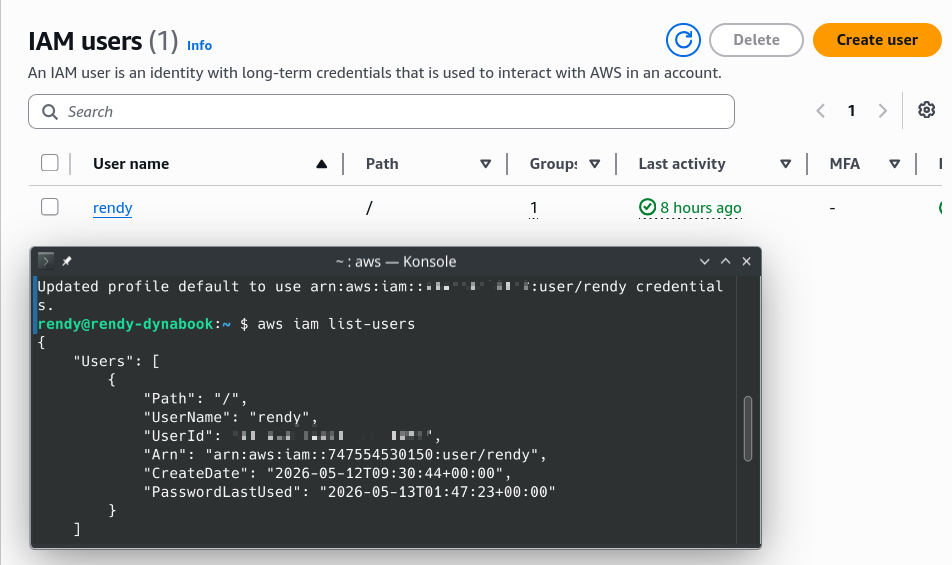
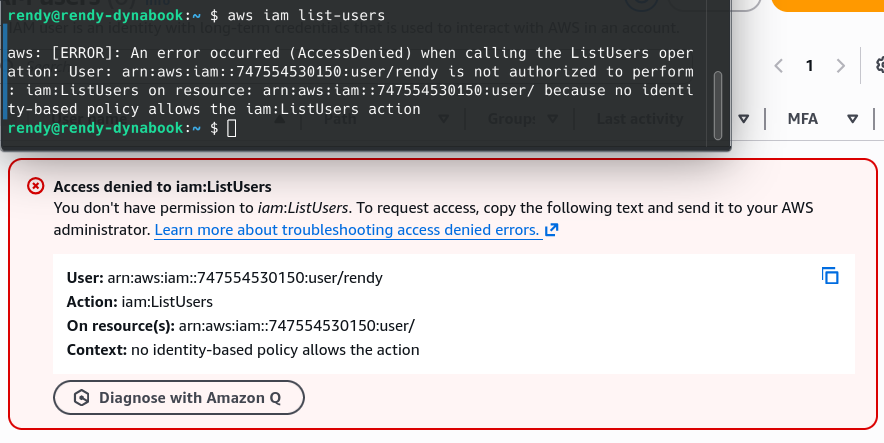
- Permission Management: Maarek illustrates how removing permissions from a user affect their ability to perform actions in the CLI. For example, taking the
Rendyuser out of the admin group results in a denial permission when trying to list users. - IAM Permission Consistency: Both the management console and CLI enforce the same IAM permission sets, meaning changes in permissions impact access across both interfaces.