AWS Budget Setup
Getting billing and budget alerts set up is an important step in managing AWS costs effectively.
Key takeaways
- The "Root Account" Prerequisite
- Even when using IAM user that has
AdministratorAccess, we can't see billing data by default. - The fix: Log in as the root user, go to Account, scroll-down until you find the IAM User and Role Access to Billing Information section, click
Edit, and then check the box that saysActivate IAM Access. This will allow IAM users with the appropriate permissions to access billing information.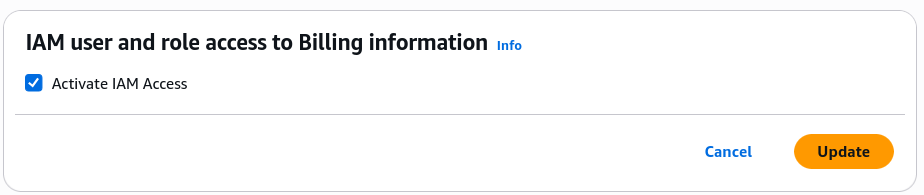
- Even when using IAM user that has
- Bill Breakdown
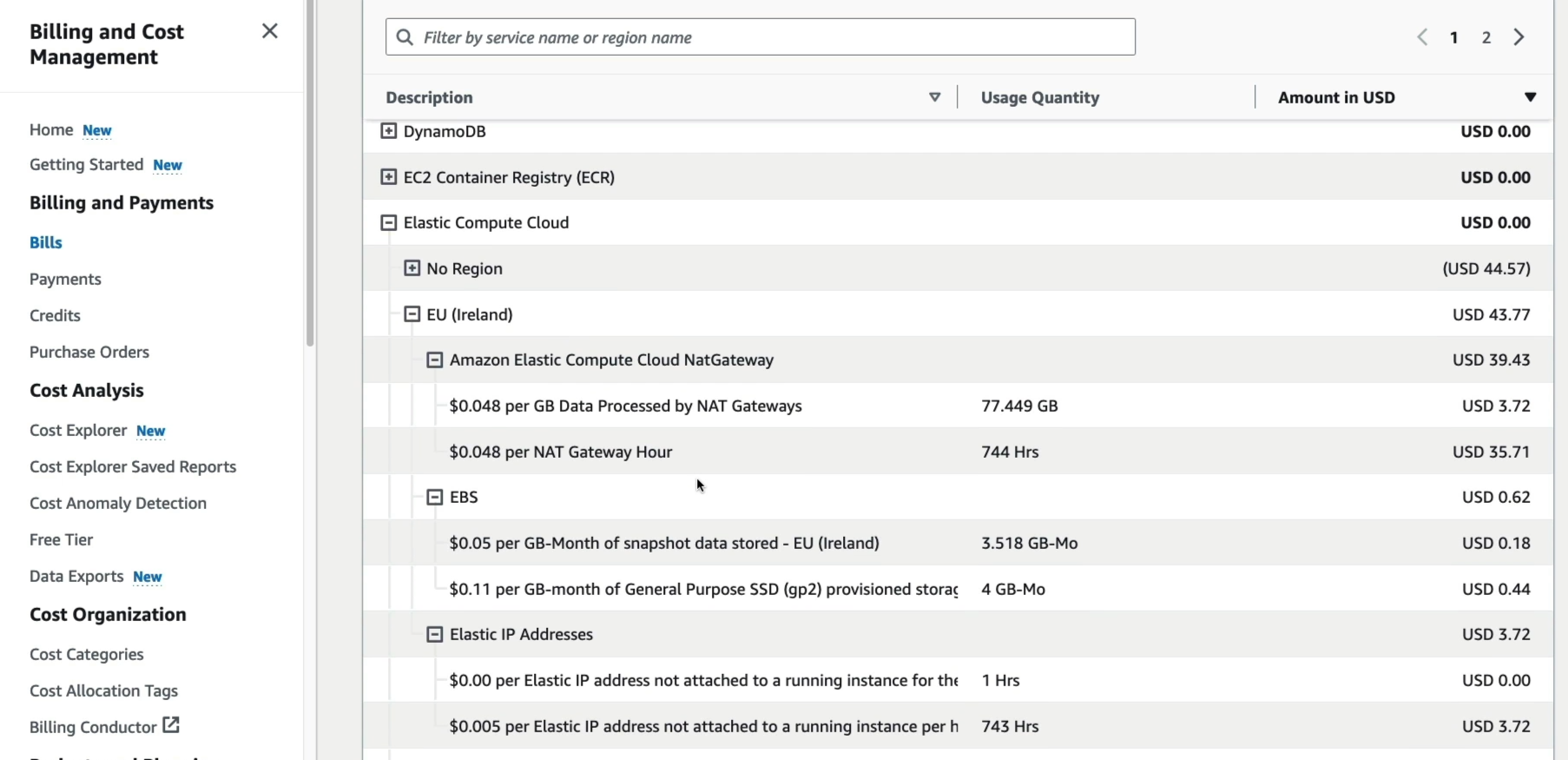
- Service Deep Dive: The Bills page is where we can find out exactly how much we are being charged for each AWS service.
- Granular info: It breakdown costs by Service and Region (e.g Maarek's shows that most of his costs are from EC2 in EU Ireland).
- Free Tier Monitoring
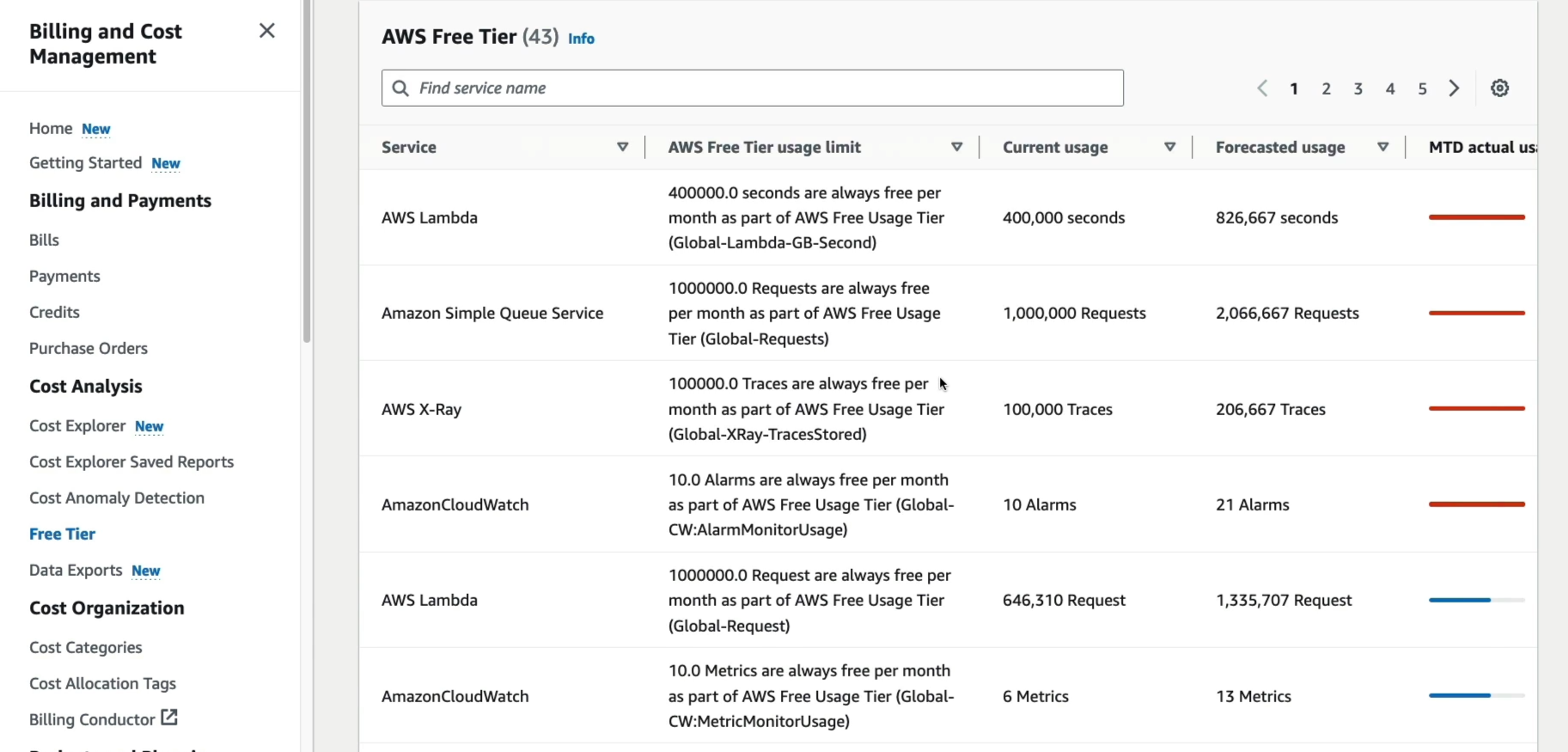
- Usage Tracking: The Free Tier dashboard shows how much of the monthly "allowance" we have used for each service.
- Forecasts: If the dashboard predicts you'll overshoot the limit, it'll highlight in red.
- Budget
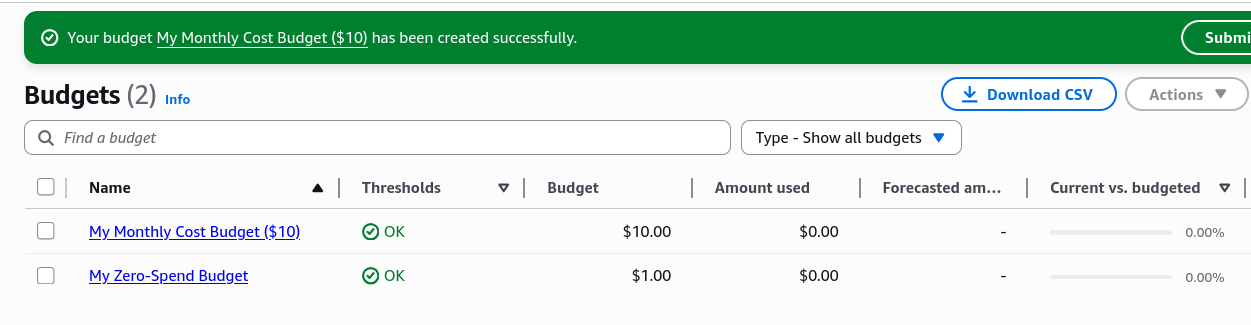
- Zero Spend Budget: Maarek shows how to set up a budget with Zero spend budget template. So whenever a single cent is spent, we will get an alert via email.
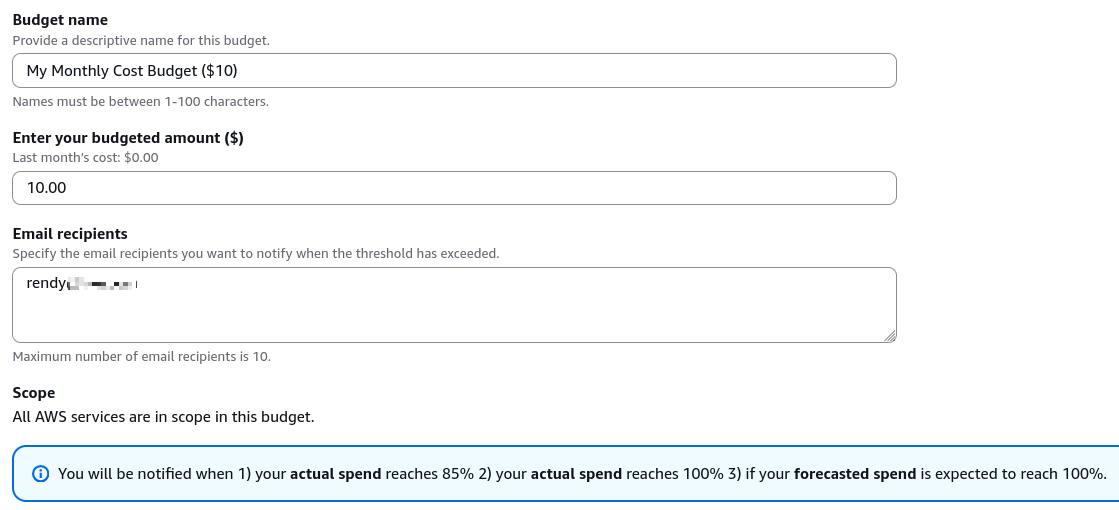
- Monthly Cost Budget: We can also set up a budget with a specific amount, for example, I don't want to spend more than $10 per month for this course, so I can set up a monthly cost budget with a limit of $10. If the forecasted cost exceeds $10, I will get an alert via email.
- Just a note, if we follow the course closely, we should not be spending any money. Setting up the budget is just practice and just in case we do make a mistake.