SSH
This is where we get to the fun part, some people say it's notorious for being a headache, but I am confident that after this, you'll be SSHing with your eyes closed.
Overview
-
The SSH Landscape: Your computer OS dictates the SSH client you use.
OS SSH Putty EC2 Instance Connect Linux ✅ ✅ Mac ✅ ✅ Windows >= 10 ✅ ✅ ✅ Older Windows ✅ ✅ Mac/Linux/Windows 10+ have built-in SSH CLI. Older Windows, you'll need to install PuTTY.
EC2 Instance Connect is browser-based tool. It's the easiest way because it works on everything and doesn't require any setup. -
Troubleshooting: Stephane said a lot of student struggle to get this working, here are some tips:
- SGs: Did you actually open port 22?
- IP Whitelisting: If you used "My IP" option, did your internet connection change?
- The Key File: are you using the correct
.pemor.ppkfile you downloaded during instance creation? - Typos: One wrong character in the IP address or username can cause connection issues.
-
The "One is Enough" Rule: You don't need to make all three working. Find the one that works for you (Likely SSH or EC2 Instance Connect) and stick with it. If you can get a shell prompt, you've won.
SSH using Linux or Mac
-
Directory Matters: You must be in the same folder as your
.pemfile when you run the command, or you have to provide the full path to the file. For example, I have created a special directory.sshin my home folder to store all my SSH keys. -
No Spaces: Stephane's tip: Remove any spaces from the file name of the key pair.
-
Double check SG: Just to be sure, check that port 22 is open to your IP.
- Permission Denied: SSH is very strict about file permission. If your key file is "too open", SSH will refuse to use it for security reasons. Change the permission to
chmod 400 your-key.pemto make it readable only by you.
- Permission Denied: SSH is very strict about file permission. If your key file is "too open", SSH will refuse to use it for security reasons. Change the permission to
-
Instance IP Address: Find your instance's public IP address from the EC2 console. We will need it shortly.
-
The Command: Once your permission is set and you're in the right directory, the magic command is:
SSH Commandssh -i your-key.pem ec2-user@<Your-Public-IP>You'll likely see "The authenticity of host..." for the first time when you connect. Just type
yesto add it to yourknown_hostsfile.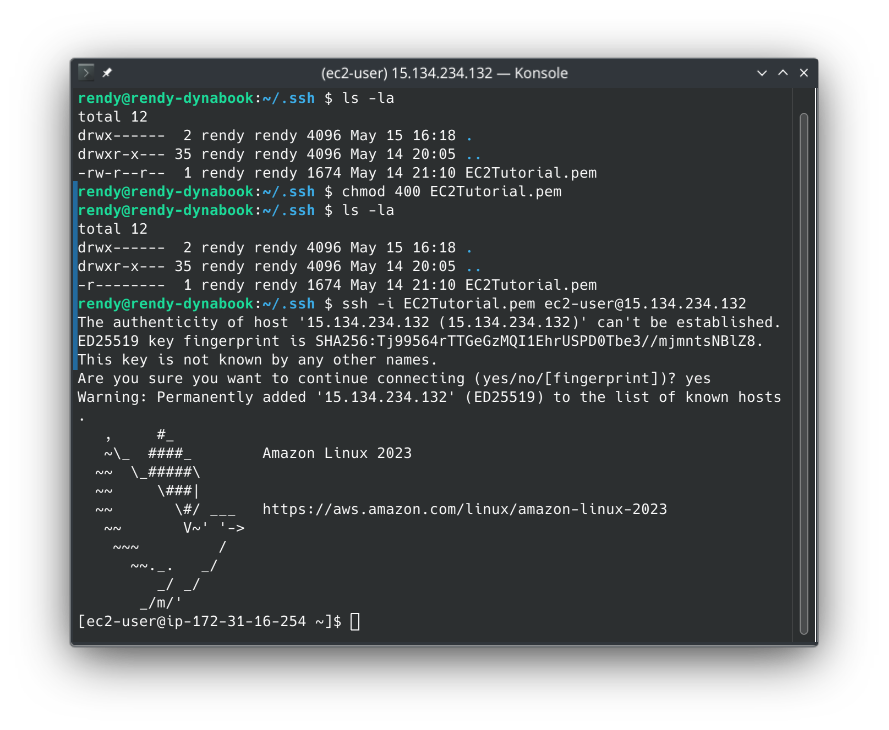
-
Confirming You're In: You know you're in when your terminal prompt changes to something like
[ec2-user@ip-1721-31-xx-xx ~]$whoamishould returnec2-userexitto kill the session and return to your local terminal.
SSH using PuTTY (Windows)
For Windows older than 10, you need to use PuTTY. The process is almost similar to Linux/Mac, but with a few extra steps to convert the key file and configure PuTTY.
- Convert the Key: PuTTY doesn't understand
.pemfiles, so you need to convert it to.ppkusing PuTTYgen.- Open PuTTYgen, load your
.pemfile, and then save it as.ppk. Or if you downloaded the.ppkfile directly from AWS, you can skip this step and under "Connection > SSH > Auth", browse to your.ppkfile.
- Open PuTTYgen, load your
- Configure PuTTY: Open the PuTTY app, set the Host Name to
ec2-user@<Your-Public-IP>, Port keep it as 22, and under "Connection > SSH > Auth", browse to your.ppkfile. - Connect: Click "Open" to start the SSH session. Just like with Linux/Mac, you'll see a security alert the first time. Click "Yes" to continue.
SSH in Windows 10+
Windows 10 and later have a native SSH client built right into PowerShell and Command Prompt. The process is very similar to Linux/Mac, but with a few Windows-specific quirks, such as file permissions and the path to the key file. Follow along Stephane's video for the guide.
Troubleshooting
- The "Timeout" vs. "Refused" Distinction:
- Connection Timeout: This is 99% a Security Group issue. The bouncer isn't even letting you reach the door.
- Pro-tip: If the SG looks right, but you still get a timeout, it's likely another firewall blocking port 22 (e.g., corporate, or home).
- Connection Refused: The bouncer let you in, but there's nobody home. The SSH service isn't running on the instance.
- The Fix: Restart the instance or terminate and start a new one with AL2023.
- The "Permission Denied" Error: If you see
permission denied (publickey), it usually one of the two user errors: - Wrong User: You forgot to use
ec2-user. - Wrong Key: You're trying to use a .pem file that wasn't the one assigned to that specific instance at launch.
- Connection Timeout: This is 99% a Security Group issue. The bouncer isn't even letting you reach the door.
- The "Moving Target" (Public IPs):
- If your connection worked yesterday but fails today, check your IP.
- Windows Quirks:
- If your PowerShell says
ssh command not found, you don't have the native client installed. - The Fix: Go back to the PuTTY method or EC2 Instance Connect.
- If your PowerShell says
- The "final" Option: If you've spent 20 minutes fighting with your terminal, just stop, and use the EC2 Instance Connect button in the AWS console.