EBS Snapshot
If an EBS volume is a "USB stick", a snapshot is like taking a full digital backup image of that stick and saving it in a global vault.
Key Takeaways
Snapshot Basics & Migration Mechanics
- Point-in-Time Backup: A snapshot captures the exact state of your EBS volume at a specific moment.
- Live Snapshots: You do not have to detach the volume from a running instance to take a snapshot, though doing so is recommended to ensure data consistency.
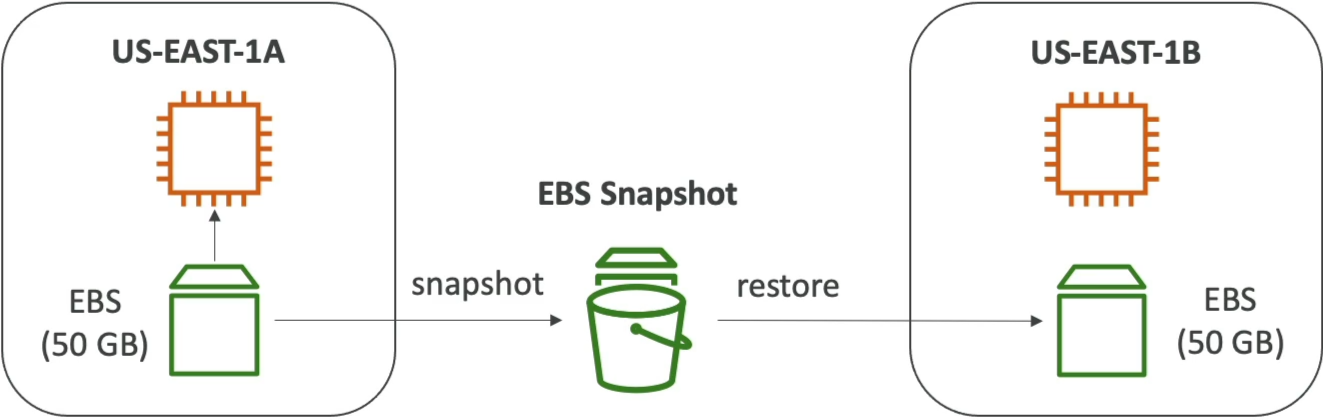
- Bypassing the AZ Lock: Because EBS volumes are locked to a single AZ, taking snapshot is te standard method to clone or move volume's data to a different AZ or an entirely different AWS region.
EBS Snapshot Archive Tier
- Cost Optimization: You can move long-term, rarely accessed snapshots to an archive tier for a massive discount (up to 75% cheaper).
- Trade-off: This is not an immediate restore. It takes 24 to 72 hours to retrieve and restore an archived snapshot.
- Exam-tip: If a scenario asks for immediate recovery or a low Recovery Time Objective (RTO), the archive tier is the wrong answer.
Recycle Bin for EBS Snapshots
- Accidental Deletion Protection: Instead of instantly deleting a snapshot permanently, you can configure them to go into a Recycle Bin first.
- Retention Configuration: You can set the rules to keep deleted snapshots available for recovery anywhere from 1 day to 1 year.
Fast Snapshot Restore (FSR)
- Eliminating Latency: Standard EBS volumes restored from snapshots experience a performance hit (pre-warming latency) the first time each block of data is accessed. FSR forces full initialization immediately so the volume delivers maximum performance on day one.
- The Catch: It is great for large snapshots or rapidly scaling workloads, but it is highly expensive.
- Exam-tip: Look for FSR in question dealing with performance optimization, minimizing initialization for large data sets, or fast-scaling microservices.